
Ch 06d: File uploads, media registration and creation of media records
Documentation by ChatGPT Sol 5 lite 6/10/26 with some additions. Content not yet systematically verified.
Populate > Media files
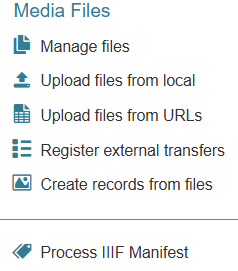
Heurist distinguishes between a registered file, which can be attached to a record through a File field, and a Digital Media record, which describes the file and can be searched, classified and linked to other records.
Manage files
Opens the file manager, listing files uploaded to the database and registered references to external resources. It allows you to inspect and preview files, edit their descriptions, register additional files or external URLs, and remove unwanted entries. File references can also be exported as CSV for use in subsequent imports.
Use this to manage the database’s collection of attachments. Registering a file does not, by itself, create a Digital Media record describing it.
Take care when deleting files: records that use them may lose access to their attachments.
Upload files from local
Uploads files from your computer into the database’s file storage and registers them with Heurist. These may include images, PDFs, audio, video and other permitted file types. Thumbnails are generated where supported.
This is useful for uploading a batch of files before attaching them to existing records or creating Digital Media records.
Uploading makes the files available to the database; it does not automatically create descriptive records for them. File size and type restrictions depend on the server configuration. Very large files or large collections may require transfer by a server administrator, followed by Register external transfers.
Heurist is designed as a working data system not a repository and does not stream audio and video, necessitating a full download of audio and video. Streamable files are best loaded on a streaming server such as YouTube (ad supported) or PeerTube, or one provided by your local institutions. Large scans are best placed in a repository such as Nakala or Zenodo and referenced as remote files.
Typically Heurist is configured in Apache with a 30MByte limit on PHP file uploads to avoid the upload of huge video files or very large TIF scans, which could consume more space than dozens or hundreds of individual databases. Although these will not affect the performance of the database, they may not open on a web browser and/or take an inordinately long time to load, making them next to useless.
Upload files from URLs
Registers a batch of files using a list of URLs, optionally accompanied by descriptions. You can paste the list into the dialogue or upload a delimited text file. A recommended format is a CSV with the column headings URL,Description.
After analysing the list, identify the URL and description columns and choose whether to:
- Download the files: Heurist retrieves them and stores local copies in the database’s file storage.
- Register external references: Heurist stores their URLs and accesses the files at their existing locations.
Use direct file URLs wherever possible, rather than links to web pages containing the files.
Local copies remain available independently of the original provider. External references depend on the provider keeping the files accessible at the registered URLs. This operation registers files; descriptive Digital Media records can be created separately where appropriate.
Register external transfers
Scans the database’s configured media folders for files placed there outside the normal Heurist upload process—for example, files transferred directly by SFTP by a server administrator.
It adds previously unregistered files to the file manager and generates thumbnails where supported. Files already indexed are left unchanged. The folders and file extensions to scan are controlled by the database’s media settings.
Use this after a direct server transfer, particularly for collections too large to upload conveniently through the browser.
Here, “external transfers” means files transferred into the database’s server storage by another method. It does not mean registering remote URLs. The operation registers files but does not create Digital Media records.
Create records from files
Creates Digital Media records for files in the configured media folders, with each record linked to its corresponding file. These records provide a place to store descriptive information, classifications and connections to other database records.
The process scans the configured folders and their descendants and uses file metadata and associated XML manifests where available. Files already represented by a corresponding Digital Media record are not given another record by this process; existing Digital Media records are left unaffected.
Use this when the files themselves are research objects—for example, a collection of photographs that needs individual descriptions and links to people, places or objects.
Check the folders and permitted extensions before proceeding: scanning a large collection can create many records. The database also needs the appropriate Digital Media record type and fields, identified by their Concept IDs.
Please see the chapter on IIIF manifests and annotations for Process IIIF Manifest
Reads a registered IIIF Presentation Manifestmanifest and creates or updates records representing its contents. A manifest describes a digital resource’s ordered pages or views, known as canvases, together with media references, metadata and annotations. The manifest may be uploaded locally or registered through an external URL.
Two processing modes are available:
Full manifest management:creates or updates Manifest, Canvas and Annotation records. Heurist manages the resulting manifest structure, including canvas order and metadata, and can generate its own IIIF manifest output. Referenced media may remain external or be stored locally.Annotation overlay:imports annotations while retaining the source manifest’s canvas structure and identifiers. No Heurist Manifest record is created. This mode supports IIIF Presentation API version 3 and is unavailable where the selected file already has a managed Manifest record.
On re-import, records modified locally in Heurist or Mirador are preserved by default and reported separately.
Annotation thumbnails can subsequently be generated for selected annotation records using Recode > Create IIIF annotation thumbnails above the results in the Explore menu.
Explore > Recode > Create IIIF annotation thumbnails
TODO: duplicated at end of chapter 6b, need to decide where it belongs and simply reference
Creates a thumbnail showing the image region identified by each IIIF annotation. For example, an annotation marking a detail in a manuscript page receives a thumbnail of that detail, making it easier to recognise the annotation in record lists.
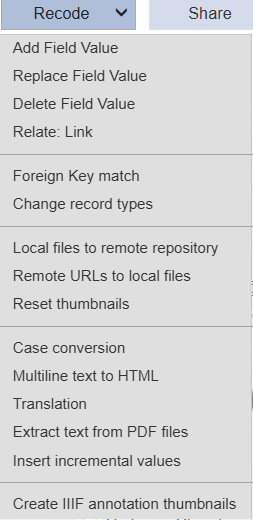
The operation processes IIIF Annotation records in the current search results, subject to access permissions. Other record types are excluded. In the current implementation, ticking individual records does not restrict the operation: first use a search to obtain the annotations you want to process.
Creating or replacing thumbnails
The dialogue contains a checkbox, Create thumbnails for missed only, selected by default.
Checked:creates thumbnails for annotations without a thumbnail reference and retains existing references.Unchecked:recreates thumbnails for all annotations being processed, replacing their existing thumbnail references when creation succeeds.
Use the default setting to fill gaps after importing annotations. Clear it when thumbnails need updating—for example, after changing an annotation’s selected region or its source image.
How the thumbnail is generated
Heurist reads the annotation’s region selection and locates the image associated with its canvas. The image can come from an external IIIF image service, a locally stored file or a directly accessible remote image.
Supported selections include:
Rectangular regions, stored as a pixel-based fragment selector.SVG regions, such as polygons or other supported shapes. The thumbnail shows the rectangular area enclosing the shape, including any surrounding image within that rectangle.
The cropped image is scaled to fit within 200 × 200 pixels, preserving its proportions, stored locally and attached to the annotation’s Thumbnail field. The annotation text, selected region and original image are unchanged.
Requirements and results
The database must contain the IIIF Annotation record type, Concept ID 2-109, and the necessary annotation fields. Each annotation needs a supported region selection and a resolvable canvas image.
A thumbnail may fail to generate if the region is missing or unsupported, the canvas image cannot be identified, the remote resource is inaccessible, or image processing or file storage fails.
The operation reports processed records and failures. The processed count includes annotations whose existing thumbnail references were retained, so it does not necessarily equal the number of newly generated images.
Missing-only mode checks for an existing thumbnail reference; it does not verify that the referenced image file still exists. To repair a broken thumbnail, clear the checkbox and recreate it.