
Ch 07: Using the database (find, filter & view
[Explore] is the workhorse function that allows you to make use of the data recorded in a database. The core function of Explore is filtering the database to isolate a subset of the database to which some sort of listing, analysis, visualisation or export will be applied (filter also acts as a simple search to locate information to look through eg. a reference, web bookmark or images). This workflow, from filter through results list or subset to reading, visualization, analysis and output, is represented in the left-to-right flow across the Explore screen :
- filter building and saved filters on the left
- results listing in the middle
- various visualisations and outputs on the right. This is the starting point for all information retrieval.
1. Overview of the [Explore] menu
1.1. Filters
Here you can find pre-programmed filters for viewing particular records in the database.
1.1.1 Recent | All by date:
[Recent]: View the most recently added or modified records, with the most recent at the top. This is useful for fetching the records you are currently working on.
[All by date]: View all the records in the database. This is useful for browsing small databases.
1.1.2.Entities
:::info [[Entities]: Filter the database by record type. :::
Displays records sorted by entity type (favourites or ordered by most used). For example, you might wish to see all the Persons in the database, all the Places, all the Books or all the Events.
1.1.3. Saved filters
:::info [Saved Filters] give an access to filters or faceted searches you have created yourself and previously recorded for re-use (frequently used or used in website publication).
Heurist allows the saving of filter criteria which become entries in a tree of saved filters, accessible through [Saved filters and Rules] menu entries, and in a dropdown below the [Filter] button.
Saved filters can be simply a predefined filter which generates a given subset of the database for a specific purpose (eg. sets of things you need regularly, perhaps sorted in a specific order, or a list to be displayed in a website), or they can be facet filters which provide a guided pathway allowing interactive exploration of the database through the display of subsets with frequency of occurrence according to the selections made.
Saved filters (simple or facet) and rules can also be created directly from the list of saved filters by clicking on the rollover icon or right-clicking on the list. The dropdown menu also allows the creation of folders within the list, editing and deletion, and other functions. Filters can be moved by drag and drop.
Note also that saved filters and rules are organized by workgroup, to allow database managers to create different sets of filters for different groups of users – for example the filters needed by volunteer data collectors or filters to be displayed on a CMS website (a Website Filters workgroup is defined by default for this purpose).
1.2. Build
1.2.1. Filter builder
:::info [Filter builder] Open a wizard which can be used to create a custom filter, which selects records from the database that meet certain criteria.
For example, you may wish to see all living Persons in the database, or all the Places that lie within a particular region.
The Filter builder provides an easy way of building queries of moderate complexity, hiding the complexity of writing filter strings. Simple searches, such as a partial string match on title, can be entered directly in the filter fields or constructed with the Filter Builder.
1.2.2.Facets builder
:::info [Facets builder] Open a wizard to build sophisticated multi-level facet filters and rulesets.
This wizard configure a faceted search, in other words an interactive filter (which will be familiar from online shopping sites). For example, you may wish to search for People by surname, while also having a time-slider to filter by birthday at the same time. Using the facets builder, you can decide which aspects of a record you would like to use for filtering (e.g. surname), and decide what kind filtering interface you would like to use (e.g. a searchbox or dropdown).
The Heurist system for building facet filters is not restricted to building facets on the attributes (fields) of a single selected entity type. It can drill down into the connections between entity types to allow selection on the attributes of related records at several levels removed. The choices are made from a treeview of attributes which can be expanded to view the attributes of connected entity types.
The facet builder can also apply rules to traverse the network of connections to find entities which are connected to the results of a facet filter. Rulesets can be created and used independently.
These queries allow a range of sophisticated instant analyses, without programming, along the lines of “select all the organisations which have published books written by female authors who have degrees from a University located in London”.
Facet filters can be embedded into websites generated by the Heurist CMS.
1.2.3. Save filter for re-use
:::info This tool saves the current filter (simple or faceted) into the tree of saved filters for reuse.
Heurist allows the saving of filter criteria which become entries in a tree of saved filters, accessible through [Saved Filters] and Rules menu entries (cf., and in a dropdown below the Filter button.)
Use of workgroups Saved filters and rules are organized by workgroup, to allow database managers to create different sets of filters for different groups of users – for example the filters needed by volunteer data collectors or filters to be displayed on a CMS website (a Website Filters workgroup is defined by default for this purpose). :::
1.3. Advanced
1.3.1. Rules
:::info Rules are expanding search results to connected entities. In other words they allow you to select interrelated sets of records of different types from the database.
For example, when searching for people in the database, you may wish to display the record for a Person's spouse or place of residence as well as the record for the Person themself. To do this, you would create a ruleset which defines exactly which related records to retrieve when you search for people. These rulesets can be used in conjunction with custom filters or faceted searches.
1.3.2. Set as subset
:::info Set as subset saves the current set of records as a subset, which can then be filtered or manipulated further.
2. Build and save a simple search or filter
2.1. The searchboxsearch box

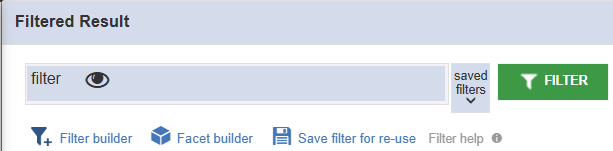
At the top of the Filtered Results pane in the Explore Menu, there is a searchbox : you can use it to do simple searches of the database, but it also drives Heurist's advanced filtering features.
If you are an advanced user, you can learn to use Heurist JSON Query Language, and design powerful, customisable queries quickly and precisely.precisely (although it is much easier with teh Fitler Builder).
Directly search for records using a range of modifiers: tag: , type: , url: , notes: , owner: , user: , field: and all:.
For example, to search for tagged records in the database, enter either tag : string or tag = string in the Filter box. For example, tag : Database (any tag including the string ‘Database’) or tag = Database (matches Database but not ‘Databases’ or ‘Database Management’). Tags are not case sensitive (i.e. 'database' = 'Database').
- If search terms include a space, enclose them in single or double quotes (e.g. tag : ’Database Management’ ).
- To find exact matches, use the = operator (e.g. title = xxx ). You can also use the greater than (>) and lesser than (<) operators if you are filtering by a numerical or date field (e.g. year < 2007 would find records from before 2007).
- To find records that include either of two search terms, use an uppercase OR (e.g. timemap OR “time map”).
- To find records with geographic objects that contain a given point, use latitude and longitude (e.g. latitude : 10 longitude : 100 ).
- To exclude records according to a particular value, use a minus sign (e.g. -maps , -tag : timelines ).
@todo link to JSON query part below.
2.2. The filter builder
The easiest way to create a custom filter is to use the [Filter builder]. You can also access this tool by hovering over ‘Filter builder’ in the left-hand column. All filters fetch a certain kind of record from the database. In the example, we want to retrieve data about world leaders who are still in office. In this database, a person’s term of office is represented as a ‘Relationship Record’ connecting the person to the country they rule. Therefore this filter should retrieve ‘Relationship Records’.

2.3. Set Filter Criteria
You now need to set one or more filter criteria. In the following example we simply want to find each person who is still in office. For the ‘Criteria’, you should therefore choose ‘End date’ (to look at when people’s terms of office ended) and then choose ‘no data’. If a person’s term of office has no ‘End date/time’, then they must still be in office!

A filter can use several criteria, using the logical operators AND and OR.
- With AND : the criteria are cumulative (for any response in the list, criterion 1 and criterion 2 are both true in the same time)
- With OR : the criteria are juxtaposed (for any response in the list, either one of the two criteria is true, or both are true.)
The filter builder allows to request in several linked record types : the dropdown menu where choose the filter criteria enables you to navigate to the Record Types linked to (or from) the one in which you are making the query. In the previous example, in a bibliographic database, we are searching only for the dramatic works of a given author. The works are found in the Work Record Type, which contains a field "literary genre", and an "Author" pointer to the Person Record Type: by following the links of the dropdown menu, you can display the fields in the Person Record Type and select the ‘name’ field, for example.

:::info Tips for building your search filter
- For complex filters, create smaller elements of the filter, and then combine these to build the full filter.
- Using codes (Record ID) in the filter rather than names not only keeps your filters compact, but also ensures that when the filters are saved the codes are invariant, whereas names can be freely changed and it can be a complex task to track these changes and edit all the saved filters.
:::
2.4. Saved filters
2.4.1. Uses of saved filters
Saved filters are the key to setting up useful ‘views’ of your data. Use them to quickly navigate to the records you are working on, to produce sorted lists, to publish sets of data to a web site, to organise the data which have been entered or imported in no particular order. Saved filters not only define a subset of your data and its ordering, but can also set up the way it is presented (e.g. as a map, a formatted report or a visualisation of related records).
If you want to keep your custom filter for later use, you can save it by clicking the [save filter for re-use] icon under the filter search field.

You may wish to save filters that are useful for your analysis, or you may use saved filters to select particular portions of the database to display on the public website.
2.4.2. Accessing Saved Filters
You can access saved filters by hovering over [Saved Filters] to the left of the screen.
3. Build a facet search
Facet searches are a powerful way of drilling down into a database, particularly if they are combined with Rules (there is a rule builder built into the facet search editor) which can pull in related information (such as, for example, spatial information for mapping when the search is based on records which are linked to places but do not themselves contain spatial information). Facet searches allow single and multi selection, alpha versus order by count, effect on speed and optimization of searches with large databases.
You can access the facet builder by hovering over [Facet Builder] at left menu or right clicking on the saved search tree and add Facet search on the bottom of the submenu.
3.1. What is a faceted search?
Faceted searches are interactive tools for searching a database. They are everywhere on the internet. You have probably used one today! Faceted searches allow users of websites like Goodreads, Amazon, the British Library or Google to filter search results according to criteria such as Price, Copyright Status, Rating or Department. Whenever you are allowed to fine-tune search results according to certain criteria, you are using a faceted search.
Heurist allows you to create your own customised faceted searches specifically designed for your database and your users.
To create a new faceted search interface for your database, you can use the facets builder from the Explore Tray.
3.2. When should I use one?
There are two main use cases:
- To create research tools for you and your team, so you can easily find relevant records;
- To create a public interface for your website.
In either case, the process of building a faceted search is the same. You build the faceted search in the Explore Menu and save it in the Saved Filters tree. If you want to use it for your own internal purposes, you can find it again and re-execute it. If you want to insert it onto a webpage from the Publish Menu, then you can use the 'Saved Filters' widget (see Chapter 9 of this documentation).
3.3. How to build a faceted search ?
3.3.1. First step : general settings
- Click on the [Facet builder] item of the left menu : this open a pop-up window in which you can configure the facets.
- Here let's assume that we are in a bibliographical database and that you want to search volumes or periodicals recorded in a Record Type named "Manifestation (édition)". Configure your faceted search :
*[Search for (entity type)] : choose the main Record type in which the faceted search will be performed
*[Faceted search name] : the name under which the facet will appear in the saved filters tree once you have saved it.
*[Save in work group] : the folder in which you want to save those facets in saved filters.
*[Display full sets of records] : useful for a website but note that ticking this box may slow down the process if the database is large.

:::info Keep in mind that the record type you choose as input is always the one you will get as output, unless you use the rulesets function (see below).
However, the faceted search allows you to choose your criteria of search from other record types linked to or from this original record type. :::
- Configure the optional features : you can choose
- the order in which your results should appear (choose the field of the record type you wish to use to sort the results : by date, by title, etc.)
- If you want a box [Simple search] to be display
- If you want to apply a preliminary filter to select only a subset in the main record type (for example here : only the volumes and periodicals published in Paris)
- If you allow the user to toggle it to expand his or her search to all records.

- Configure the display of the faceted search in public interface (in case it is used on a website)

3.3.2. Second step : choosing criteria
The following section of the facet builder allows you to choose the fields you wish to use as criteria of selection.
Note that you can follow the paths to the linked, or linked-from, records (thick the box on top-left of the window).
3.3.3. Third step : configuring the display
The following interface allows you to choose how each facet is displayed :
- simple search box : text search
- dropdown : display the values of the field in a drop-down menu
- list : display the values of the field by the number of their occurrences, one below the other
- wrapped : display the values of the field side by side
- slider : to select a range of dates

The interface provide other options :

*[Show entity hierarchy above facet label] : to be avoided for public websites, but very useful for personal research *[Accordion view/ Show accordion view] : allows the user to fold/unfold the facets when there are many of them *[Limit list initially to] : allows you to choose how many responses you want to display when you select the [wrap] and [list] options *[Rollover] : can be used to write a help text for users *[Group/Order by counts] : to choose the order of the results' display.
Once the facets are configured, they can be saved. You can re-open it by clicking on it in the saved filters menu, and use it for your own searches and/or to display it on a website.
4. Visualisation panel

The central panel of the interface displays a list of search results. By default, it displays all records in the database sorted by date of creation. It offers several useful features for data management and cleaning, and allows you to perform various operations on multiple records at once.
4.1.[Selected]
- [Tag] : adding tags to specific records of the database allows users to find it quickly when using a filter is not relevant. Tags can be named and assigned to specific workgroups, or to be user-specific. Once the choosen tags are assigned, you can find it again using a filter (choose for example [any record type], then in [Metadata] : [Tags (terms)])
- [Rate] : can be used to assigned ratings to recordings. Note that you can only do this after assigning a bookmark to the record.
- [Bookmark]/[Unbookmark]
- [Merge]: this function allows to merge two or more records. First select the records, then choose [Merge].
 Choose the master record (the one to be kept), then [Merge duplicates].
  Choose the fields to be kept in the final merged record, then [commit changes]. Note that the references (i.e. linked records) will be all retained.
 - [Delete] : delete the selected records from the database.
4.2. [Collect]
This range of functions allows to make by hand personal collections of data : select the records you want to add to a collection, then use [add] (to add it to a collection) and [save as...] to save your selection as a filter. You can also [remove] records from a collection, [clear all], display the collection in a new tab and/or as a search result.
4.3. [Recode]
This range of functions allows you to make bulk edits to multiple records in the database at the same time. Here you can :
4.3.1. Modify the values of the fields
- adding, replacing or deleting the value of a field
- add a link to another record ([relate:link])
4.3.2. Modify some aspects of the structure
- [Foreign key matching] : This function processes the current query looking for records in another (or the same) entity type, based on matching the values of a field in each entity type. Fields to be matched may be text or numeric. The current query must contain only a single record type (this is enforced to avoid accidental errors). Where a match is found it will insert the ID of the matched record into a record pointer field in the source record.
- [Change entity type]
4.3.3. Manage media files
- [Local files to remote repository]: to transfer the files to Nakala.
- [Remote URLs to local files]: adds a field "File(s) uploaded or remote", whose value is a URL to a remote file.
- [Reset thumbnails]
4.3.4. Extract and modify text
- [Case conversion]
- [Multilined text to html]
- [Translation] : translate the value of the selected field. The translation is inserted after the existing value, not in a separate field.
- [Extract text from PDF file(s)] : This function extracts text (up to 64,000 characters) from any PDF files attached to a record and places the extracted text in the field specified (by default "Extracted text" (2-652), if defined). Bad characters encountered are ignored. If there is more than one PDF file, the text is placed in repeated values of the field. Text is only extracted if the corresponding value of the field is empty to avoid overwriting any text entered manually.
4.4. [Share] : managing collaborative work
In this section of the menu you will find tools which allow you :
5. Rulesets
5.1. Why RuleSets?
In a database, important information is often distributed between many different records. For example, imagine you want to know what country a person was born in. In your Heurist database, there may be a 'Person' record for the person, which is linked to a 'Place' record which describes the place they were born. To know what country the person was born in, you would need to locate the 'Place' record for their place of birth, and then see what country that Place is in. In the example below, the Person record for William Shakespeare refers to the Place record for Stratford to describe his Place of Birth: If you are just looking at one record, you can simply click on the record pointer in the Explore Menu to be taken to the linked record – so really there is no need for any additional tools.

But what if you are examining many records at once? For example, you have filtered the database for a selection of important Persons, and want to see all the Places they were born? Or you have filtered some Places in your database, and want to see all the books published there? Or, more complexly, you have filtered the database to obtain a list of relevant pieces of Legislation, and want to know which Political Party each of the Persons who voted for the Legislation belonged to.
This is where RuleSets come in : you can use a RuleSet to systematically fetch related records from the database, expanding the current result set to include additional relevant records.
Possible applications of RuleSets include:
- Researching complex relationships between records in the interface
- Fetching additional related records to display on the map or network diagram along with the main records in your result set
- Allowing visitors to search for one kind of record (e.g. Educational Institutions) and see another kind of record in the results (e.g. Persons who attended those Institutions)
5.2. How to create a RuleSet ?
To create a RuleSet, hover over [Rules] in the [Advanced] section of the Explore Tray. Choose a workgroup to save the RuleSet under and click 'add'. Or click right on the RuleSet tree and select [New RuleSet]. In the RuleSet editor, you can step from one Record Type to another using Record Pointer and Relationship Fields. It is possible to step in two directions. In the above example, you could step from the Person Record for Shakespeare to the Place Record for Stratford, or you could step from Stratford to Shakespeare. At each step, you can optionally apply a filter, which you can define using Heurist's Filter Builder. You can also add a RuleSet to a predefined filter.
5.2.1. Building a RuleSet : an example

In the image above, the Ruleset looks at all the Persons in the current results set, and finds the Places where they died. It then finds any Life Events associated with those Places. Thus, if you filter the dataset to find some interesting people, you could answer the question: What Life Events are recorded for these Persons' places of death? As an added element, the Places can be filtered when the RuleSet is applied. To add a filter, either type the filter directly into the box using Heurist's query language, or click the pencil icon to use the Filter Builder. In the screenshot, Places are filtered so that only Islands will be considered. Thus the question becomes more specific: What Life Events are recorded for the Islands on which these Persons died? If you click [Add new Rule], then you can include a second, separate set of steps to fetch related records. For example, if you wanted to see the Places of Birth as well as the Places of Death for the Persons in the result set, then you would need to add a new rule to the RuleSet.
5.2.2. Integrating RuleSets with other tools
Once you have saved a RuleSet, you can integrate it with other tools in Heurist. For example, if you have defined a faceted search that queries the Borrowing Records in a Library database, you could then apply a RuleSet to replace all the Borrowing Records in the results with the Persons who actually borrowed the books. The main places you can apply a RuleSet are :
- To the results of a Faceted Search
- To the results of a filter created using Heurist's Filter Builder
6. Advanced Users: Introduction to JSON Queries
A Json query is an array of objects (predicates). Note that this JSon format is generated by the rules+filter button
Each predicate is a pair: {“keyword”:”value”}:
-
A keyword stands for record header field, detail or link predicate.
-
The value depends on the keyword. It may be literal, csv. It may be preceded by a compare operator or contain a range or % operator. example :
{"q":"sortby:-m after:"1 week ago""} -
For link predicate, the value is a sub query (another set of predicates). example :
{"q":"sortby:-m after:"1 week ago"","rules":[{"query":"t:12 relatedfrom:14-4533 ","codes":"14","99","4533","12","",4],"levels":[]}]}
Heurist queries, in both JSon and simple filter forms, can be used in several contexts. The table below outlines the various contexts in which queries can be used, and explains the considations that must be taken into account in each context. In some contexts, the query must be placed within another JSon object whose name is "q:" and whose value is the desired query; this is called the "q:" parameter.
| Context | JSon or Simple Filter | "q:" parameter | Example |
|---|---|---|---|
| Main page search box | BOTH | No | sortby:-m after:"1 week ago" |
| CSV output query | Simple ONLY | No | f:149:34 |
| Mappable query | JSon ALWAYS permitted.Simple Filter permitted ONLY IF no rules are applied to the query | Yes | {"q":"sortby:-m after:"1 week ago"","rules":[{"query":"t:12 relatedfrom:14-4533 ","codes":["14","99","4533","12","",4],"levels":[]}]} |
| Facet search pre-query | BOTH | No | {"f:10":"1914-12-31T23:59:59.999Z<>1931-01-01"} |
| Expansion rules | JSon ONLY | No | [{"query":"t:12 linkedfrom:16-90 ","codes":["16","90","","12","",2],"levels":[]}] |
Specifying database for mappable query data sources The user can specify db parameter in query field of “Mappable query datasource so that it can be rendered from any database. For example: {"q":"t:12 f:26:108","db":"osmak_38"}
6.1. Syntax
6.1.1. Simple filter syntax
Up to version 4, Heurist used a simple search-engine style of filter syntax which is documented in the help link next to the filter field on the Explore page. This syntax is still supported and is useful to quickly find things eg. by simple text searching.
In versions 4 and above, the syntax of the Heurist queries is based on JSON (JavaScript Object Notation), which allows for programmer-writable inputs. Click here ==missing link== for a basic introduction to JSON syntax. For mere human beings, the Filter Builder will build the JSon queries, which may then be edited by hand for small changes.
Queries are written as JSON objects, which begin and end with braces {}. An object contains zero or more name-value pairs, in which the name and values are separated by a colon: Multiple values are separated by commas. All strings and comma-separated sequences must be enclosed in double quotation marks for the query to be valid in JSon syntax.
Many basic Heurist queries can be performed using a simplified version of JSON syntax in which the braces and double quotation marks are removed.
For example, a basic query is written in simplified syntax as f:1:a and will return the set of all records whose titles contain the letter "a".
Negation is expressed in simple syntax by placing the minus sign before the whole object: -f:1:a returns all records whose titles do not contain the letter "a".
Be cautious when using simplified syntax, as not all queries can validly be expressed in this form. For example, the "==" operator is not implemented in simplified syntax, only in formal JSon syntax. If in doubt or if an unexpected result set is returned when using simplified syntax, please revert to using full formal syntax as described below.
6.1.2. JSon query syntax
In a Heurist query, the name represents the field or attribute being matched, and the value represents the logical predicate that is matched to it. For example, the query {"t":"1"} is interpreted as follows: "return all records such that their attribute "t" (record type) matches the value "1" (relationship record)". Thus this query returns all relationship records in the database.
It is possible to write a name as an object, which is used to specify the field being matched. For example, the object {f:1} (a simple filter object interpreted as "the field with code 1") denotes the Name field of any record, so {"f:1":"a"} is interpreted as follows: "return all records such that their field with code 1 (i.e. their Name field) contains value "a"". This query returns all records whose titles contain the letter "a".
To include multiple query terms using the JSON syntax, you need to enclose your query in square brackets: [ ]. For example, to search for all Persons in the database whose surname is "Patel", you could type: [{"f:1":"Patel"}, {"t":"Person"}]
Basic query terms
The following table gives the names and values that constitute basic queries, with an explanation of their meaning and use, as well as examples in both simple filter format and formal JSon format. A result set from a simple filter search is automatically sorted, while a result set from a JSon search is unsorted by default.
| Name (Meaning) | Value | Result | Simple filter (sorted by default) | JSon syntax (unsorted by default) |
|---|---|---|---|---|
| t (record type) | number OR string | Returns all records of type value. If value is a number, it refers to the index of that record type, and if value is a string, it refers to the name of that record type | t:1 returns all Relationship Records;t:Person returns all Person Records |
{"t":"1"} returns all Relationship Records;{"t":"Person"} returns all Person Records |
| f:#, field:# (field type) | string | Returns all records whose field with index # contains value. Hot tip: The field number is optional. If you wish to search all the fields associated with the records, then you can simply use "f". | f:1:a returns all Records whose field #1 (Title) contains "a".f:a returns all Records which have an "a" in any field |
{"f:1":"a"}returns all Records whose field #1 (Title) contains "a";{"f":"a"}returns all Records which have an "a" in any field. |
| ids (record ID) | number | Returns all records with record IDs value. | Separate multiple IDs with commas:ids:51,52,53returns Records #51, #52, #53, #54 in the database |
{"ids":"51,52,53,54"} returns Records #51, #52, #53, #54 in the database |
| linkedto(linked records) | number | Returns all records that point to the record with ID value. | linkedto:123 returns all records that point to Record #123 |
{"linkedto":"123"} returns all records that point to Record #123 |
| linkedfrom (linking records) | number | Returns all records that the record with ID value points to. | linkedfrom:123 returns all records that Record #123 points to |
{"linkedfrom":"123"}returns all records that Record #123 points to |
| related (related records) | number | Returns all records that have a relationship to the record with ID value. | relatedto:123 returns all records related to Record #123 |
{"relatedto":"123"} returns all records related to Record #123 |
Extending queries
It is possible to extend the value of a query using commas. Thus in formal JSon syntax: {“f:1,4”:”find me”} returns all records in which either field #1 or field #4 contains the string "find me".
It is also possible to include relational operators in the value, in order to specify the match more precisely. For example {"f:210":"==Poet"} in which the relational operator = requires an exact match, while the relational operator == gives a case sensitive match. Please note that the PHP operator "===" (identity) is not implemented in Heurist.
Special attribute queries
The following queries target special attributes of records such as Ownership, Visibility, Date Modified, etc. These must be written in formal JSON syntax, for they do not work with simplified syntax.
{"addedby":"29,1000"}
{"addedby":"-osmakov"}
{“owner":1}
{"owner":"Database Managers"}
{"access":"hidden"}
{"access":"viewable"}
{"access":"public"}
{"access":"-public"}
These can be combined: {"owner":3,"access":"viewable"}
In order to query multiple types of record whose visibility is not public, use the following query in simple filter syntax : visibility:-public (t:24 or t:11 or t:25 or t:27 or t:28 or t:29 or t:44)
or the equivalent query in JSon syntax: {"access":"-public","t":"24,11,25,27,28,29,44"}
6.2. Logic
These are the logical keywords used in queries:
- not
- all
- any
- OR
- AND (default)
- notall
- NOT ( AND )
- notany
- example :
notany:[{"title","Black"},{"title","White"}] => NOT ((rec_Title = ‘Black’) OR (rec_Title = ‘White’))
- example :
- NOT ( OR )
By default the set of predicates conjoined by AND: [{"title":"President"},{"f:1","Nixon"}] stands for (rec_Title = ‘President’) AND (dty_ID=1 and dty_Value=’Nixon’)
To shorten the query, it is possible to unite predicates of one level into single object: {"title":"President", "f:1","Nixon"}
It is also possible to nest logical conjunctions. For example: {"not":{"any":[{"title":"Milano"},{"title":"Veneto"}]}} returns every record whose Title mask does not contain "Milano" or "Veneto".
6.3. Keywords
6.3.1 Record headers
- f, field, **Example:
[{"t":"10"},{"f:1":"goethe"}] - url,u, rec_URL
- title, rec_Title
- addedby, rec_AddedByUGrpID (takes as a value an user or users group ID)
- Example :
{"q":"addedby: 7"}
- Example :
- added, rec_Added
- Example:
{"q":"added: 2025-07-02"}
- Example:
- date, modified
- Example :
{"q":"modified: 2025-07-02"}
- Example :
- after, since, before : Synonyms for modified with compare operator in value
- workgroup,wg,owner,rec_OwnerUGrpID
- id, ids, rec_ID
- t, type, rec_RecTypeID (takes as a value an ID or a string)
- Example:
{"q":"t:109"}ou{"q":"t:Place"}
- Example:
- latitude, lat, longitude, long, lng
Links
- linkedto
- Example:
[{"t":"102"},{"linked_to:1158":[{"t":"103"},{"title":"goethe"}]}](is for : Which records of the Record type with ID 102 point to records of the Record type with ID 103, whose title includes the character string "goethe"?) Find records which have linked records specified in value for this predicate (subquery or csv of ids). Resource field ID (:x) is optional
- Example:
- linkedfrom Find records that are linked from records. Resource field ID (:x) is optional
- relatedto Find records that relates to records from subquery. Relation type (:x) is optional
- relatedfrom Find records that relates FROM records from subquery Relation type (:x) is optional
- Example:
[{"t":"10"},{"relatedfrom:1103":[{"t":"102"},{"f:1":"BAVIERE"}]},{"sortby":"t"}]
- Example:
- links ==to verify==
Bookmarks, Tags
- ==user, usr,bookmarked by user==
- tag, keyword, kwd
- Example :
[{"kwd":"à corriger"},{"sortby":"t"}]
- Example :
6.3.2. Values for Keywords
- Literal:
"f:1":"Peter%" - CSV:
"ids":"1,2,3,4" - WKT :
"f:5":"POLYGON ((30 10, 40 40, 20 40, 10 20, 30 10))"
6.3.3. Possible Operators Within Keywords
"X<>Y" : turns into BETWEEN X AND Y "-X" : NOT ( ) "=X" : suppress LIKE operator for freetext field type "<X”, ">X” : applicable for numeric and date values only
A vérifier/recontextualiser
==notes, n Synonym for f:[DT_SHORT_SUMMARY] Where DT_SHORT_SUMMARY is replaced with local code of concept 2-3 todo ==
==<???Facet search pre-query YES?? what format?? this one works and is clearly different from the mappable query format. Are we simply talking about the presence or absence of "q:" ? Have facet search pre-query ignore "q" and "rules" section if present No {"f:10":"1914-12-31T23:59:59.999Z<>1931-01-01"} Expansion rules YES Generated by expansion rule wizard This is a part of the full mappable query JSon opject No [{"query":"t:12 linkedfrom:16-90 ","codes":["16","90","","12","",2],"levels":[]}]==