
Ch 02: Getting started with Heurist
Documentation rédigée le 07/11/2025 par Barbara Bonazzi, mise à jour le 03/03/2026 par Barbara Bonazzi, relecture le 26/03/2026 par Bruno Morandière
1. Steps to using Heurist
The following is a typical workflow for a new user managing their own database:
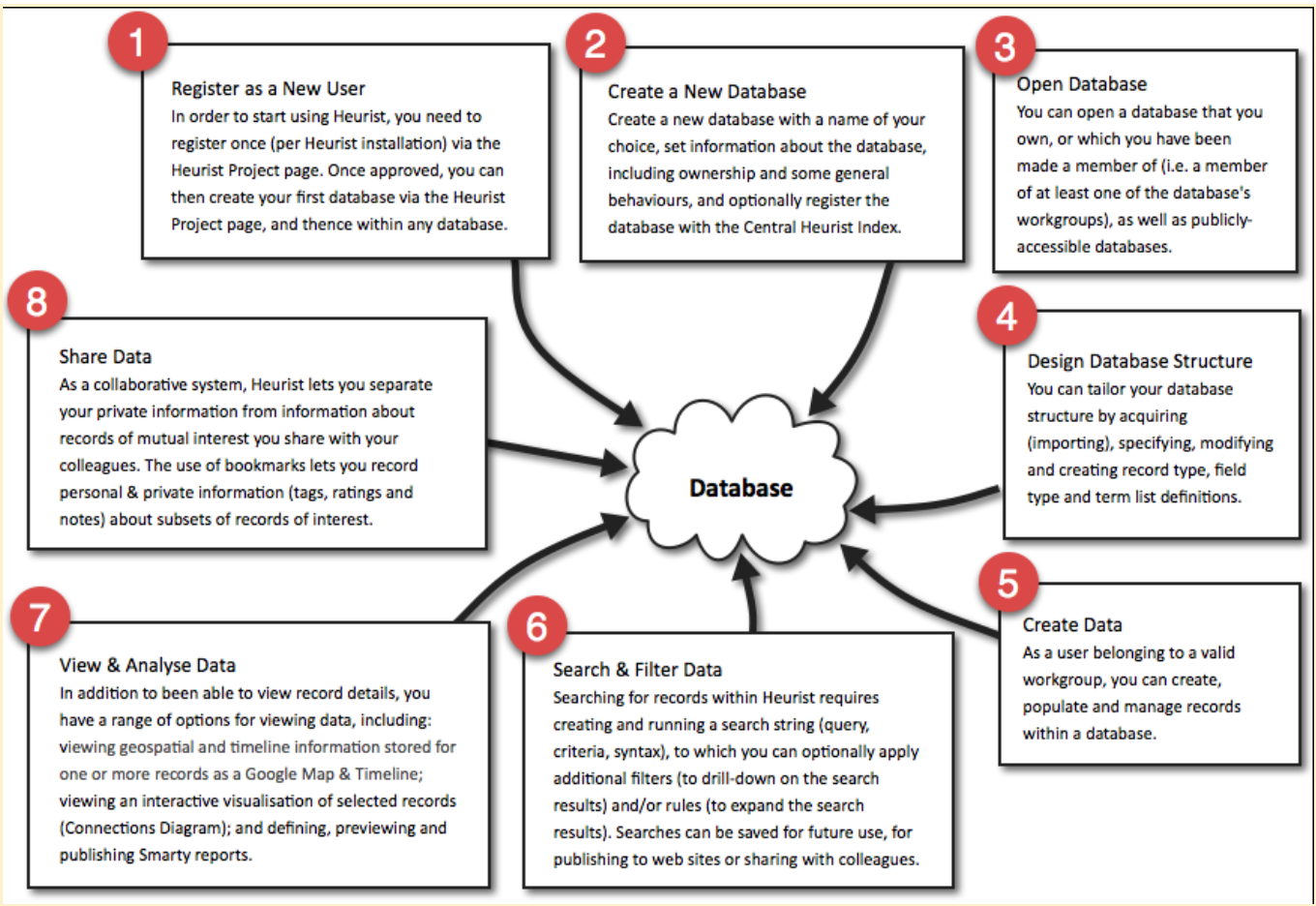
1.1 Register as a user
Register via Heurist website.
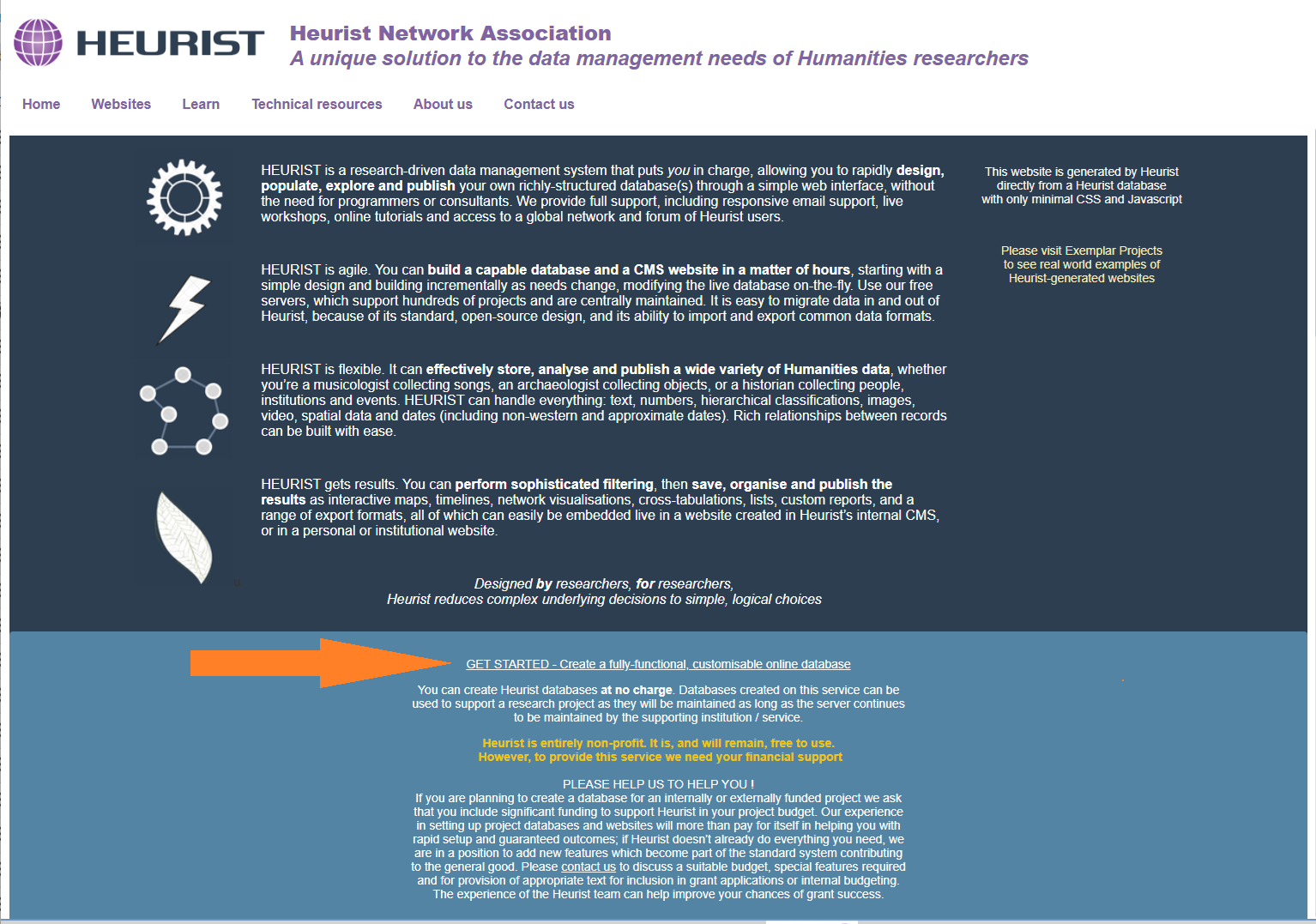
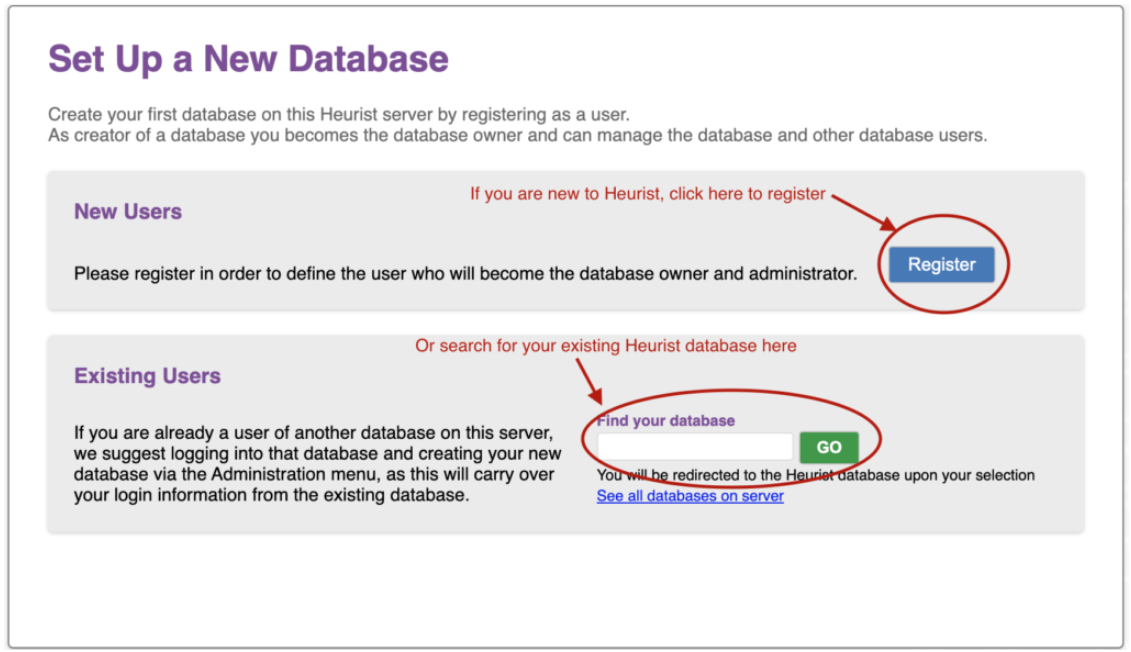
New users should click on the Register button and fill in the registration form:
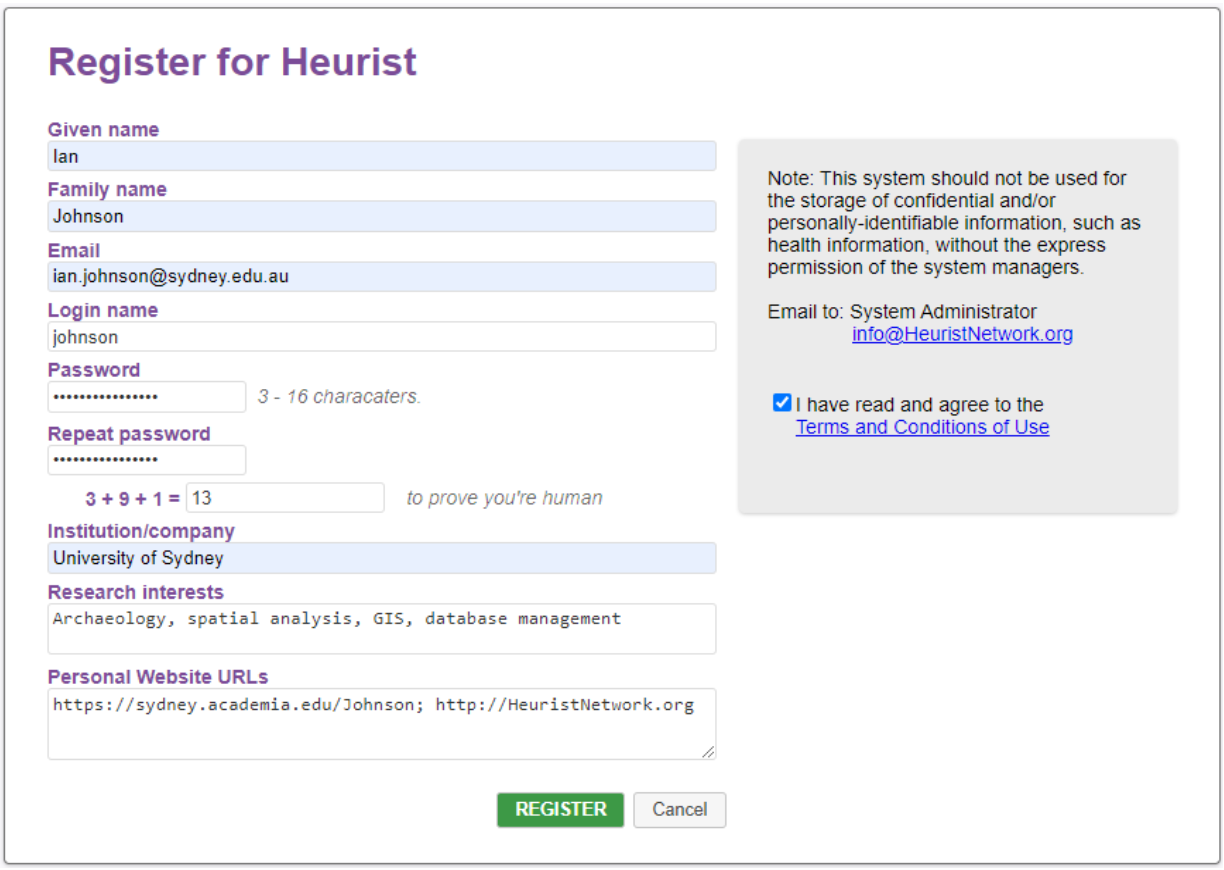
Note 1: Server administrators may require registration to be approved by them, in which case they receive an email requiring them to approve your registration and there may be a delay. Otherwise it is immediate.
Note 2: Registration is specific to a server; you will need separate registrations if you have databases on more than one server. Although your credentials (user name and password) are generally copied to each new database, the databases are independent, so you can edit them and have different credentials for different databases.
1.2 Create database
1.2.1 Tutorial
Please see the video tutorial: https://www.youtube.com/watch?v=-lRjmkpQh4g
1.2.2 After user registration: naming the database
Once you have filled in the registration form above you will be offered the opportunity to create a new database using the login information entered in the registration form.
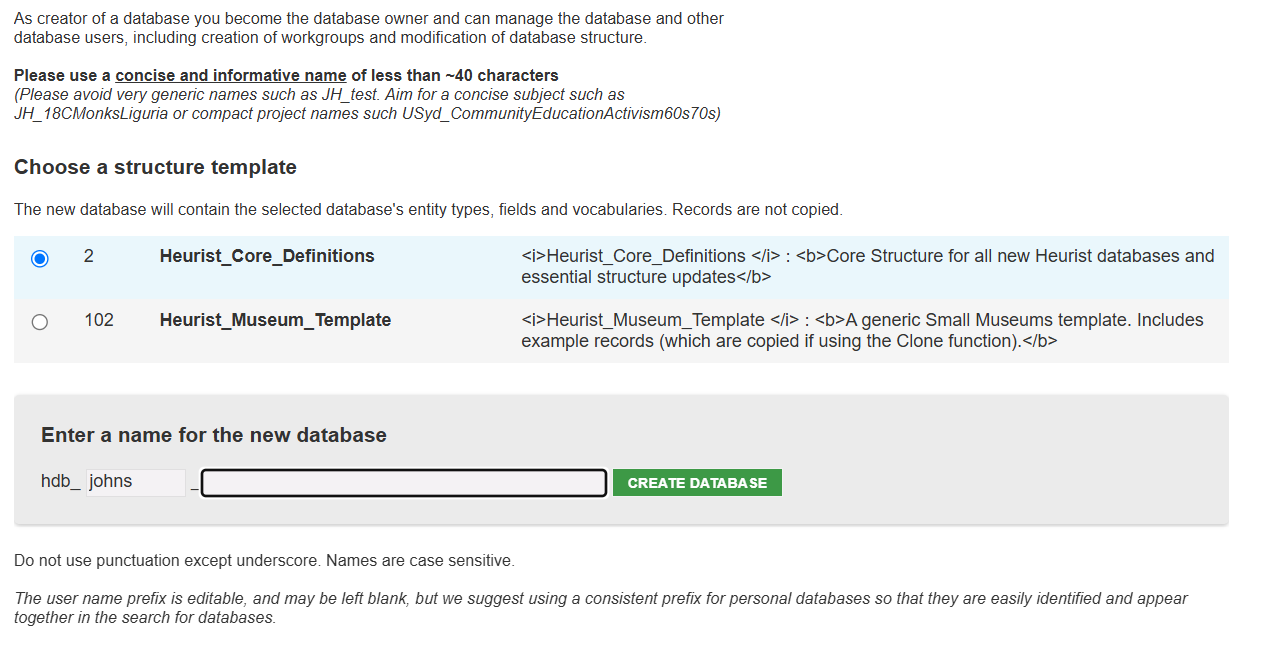
By default all new databases have the predefined record types, fields and vocabularies, and their connections and organisation into groups, which are defined in the Heurist_Core_Definitions database. Below this are displayed additional curated database structures (which also appear at the top of Design > Browse templates). These will contain the same core definitions but then additional structures appropriate to a particular target domain.
If the Heurist Reference Index is unavailable, the core definitions will be loaded from a file in the Heurist code.
Note: The alternative database templates capability was added in September 2026 and has not yet been populated with template databases other than the small museums template created in the early 20-teens.
The prefix (editable) identifies the owner but may be changed. We recommend retaining this prefix and using it for all your databases, so they appear together in the list of databases. Please keep database names concise and informative about the contents.
Spaces, apostrophes and other special characters are not permitted in the database name. For spaces use underscores ( _ ). Database names are case sensitive. ‘Lit_study’ and ‘lit_study’ are different databases.
When you click on “Create Database”, you will become the owner of this database (user # 2) and the administrator of the Database Owners group (Group # 1), with all rights on the database and content.
1.2.3 From within a Heurist database
If you already have a Heurist database, you can create a new database with Admin > New.
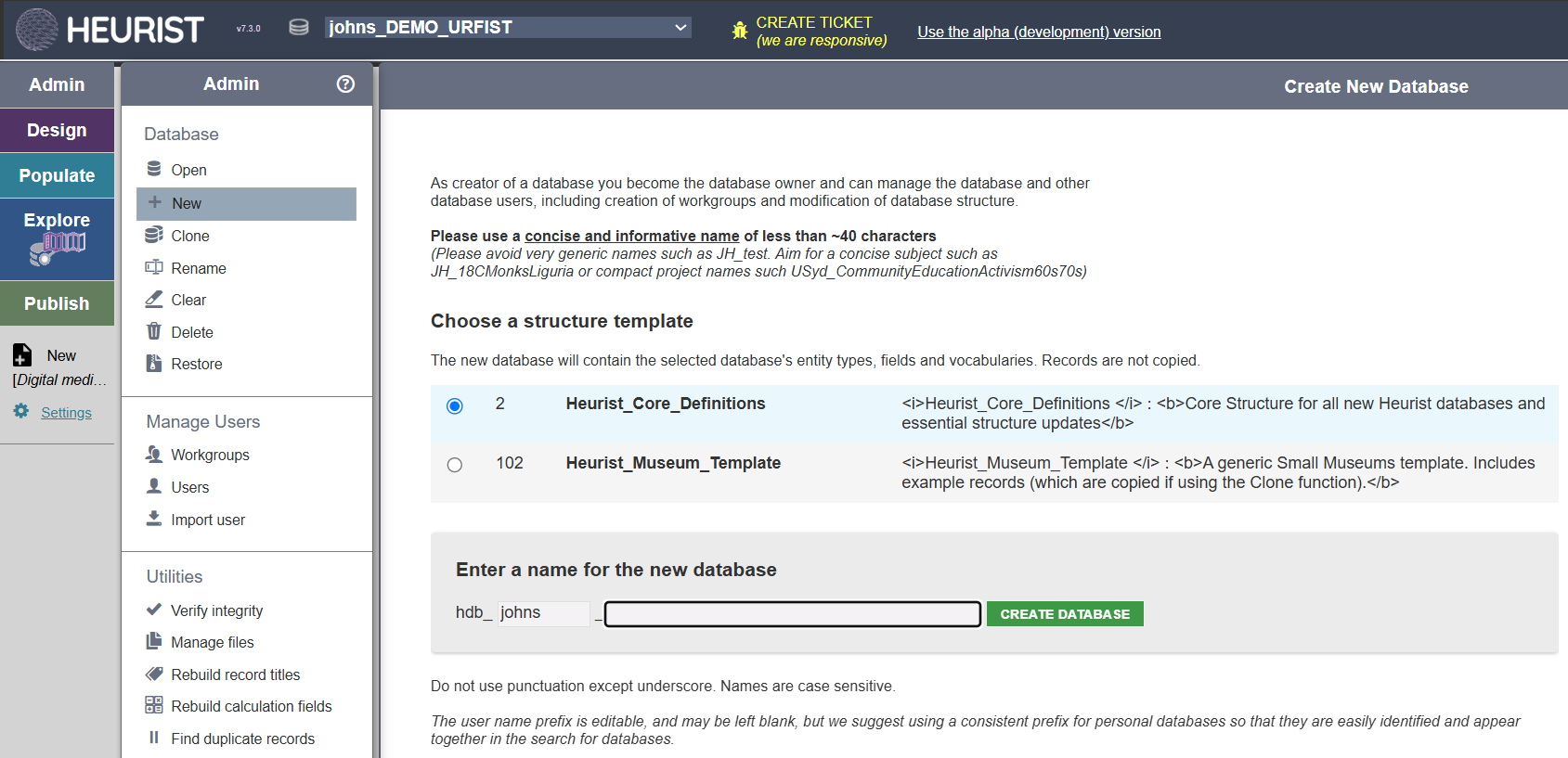
For the naming conventions, see above.
When you click “Create Database”, you will be the owner of the new database (user # 2) and the administrator of the Database Owners group (Group # 1), with all rights on the database and content, even if you were not the owner of the database you are using to do this. Your login will be the same as on that database.
1.2.4 Enter the database
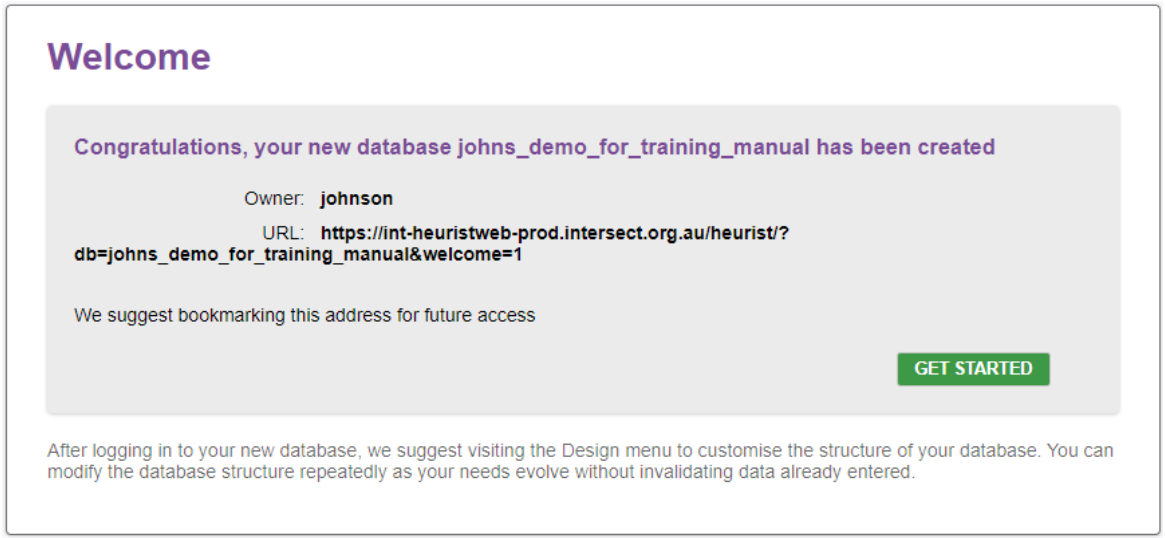
Click on Get Started to open the new database and login with the user name / password you entered .
Some databases may show additional functions such as institutional logins and the ability to request a login (which can be set in Admin > Properties).
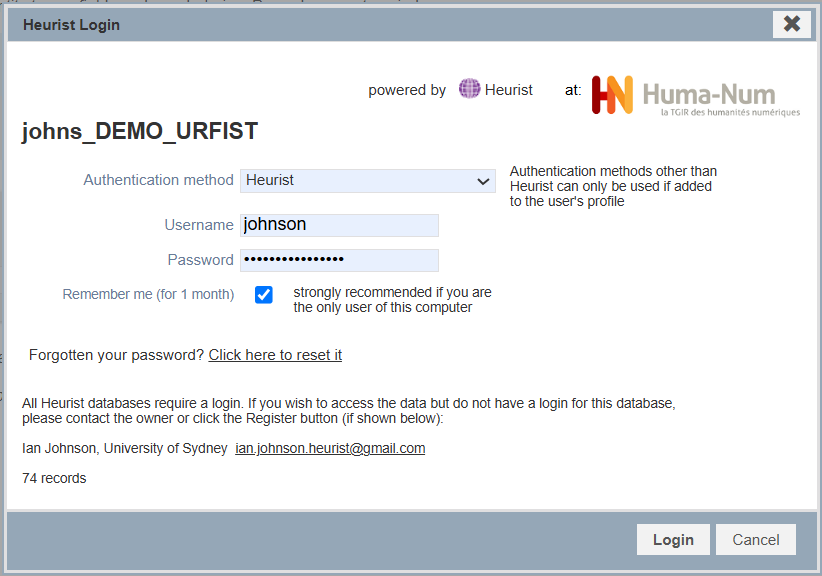
We suggest bookmarking the database so you can open it again easily (otherwise you need to search for it on the server through https://heuristref.net or https://heurist.huma-num.fr).
2. Heurist database: structure and interface
When you first open your database, you will see the Database Overview (it will not of course include your logo and description of the database - we encourage you to enter these later so that your database is well documented).
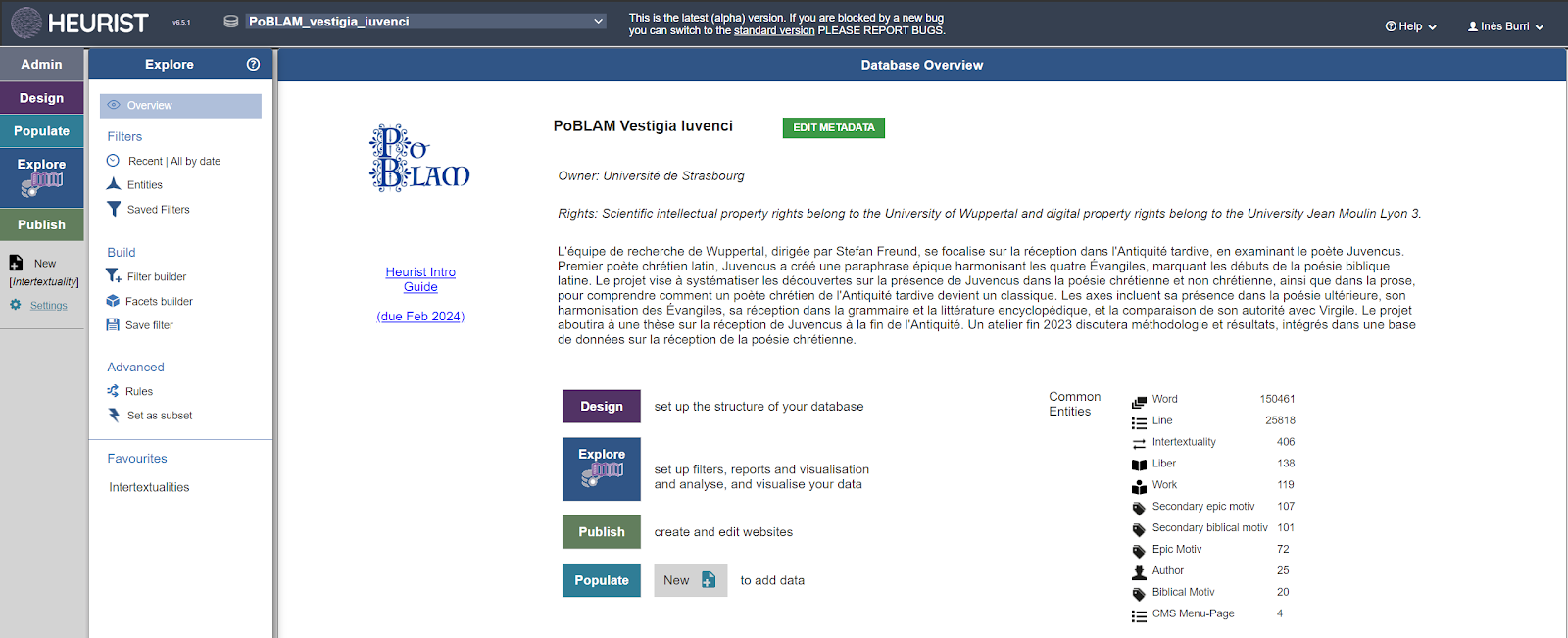
It can be closed by selecting any of the menu options and reopened via Explore > Overview.
----------------------
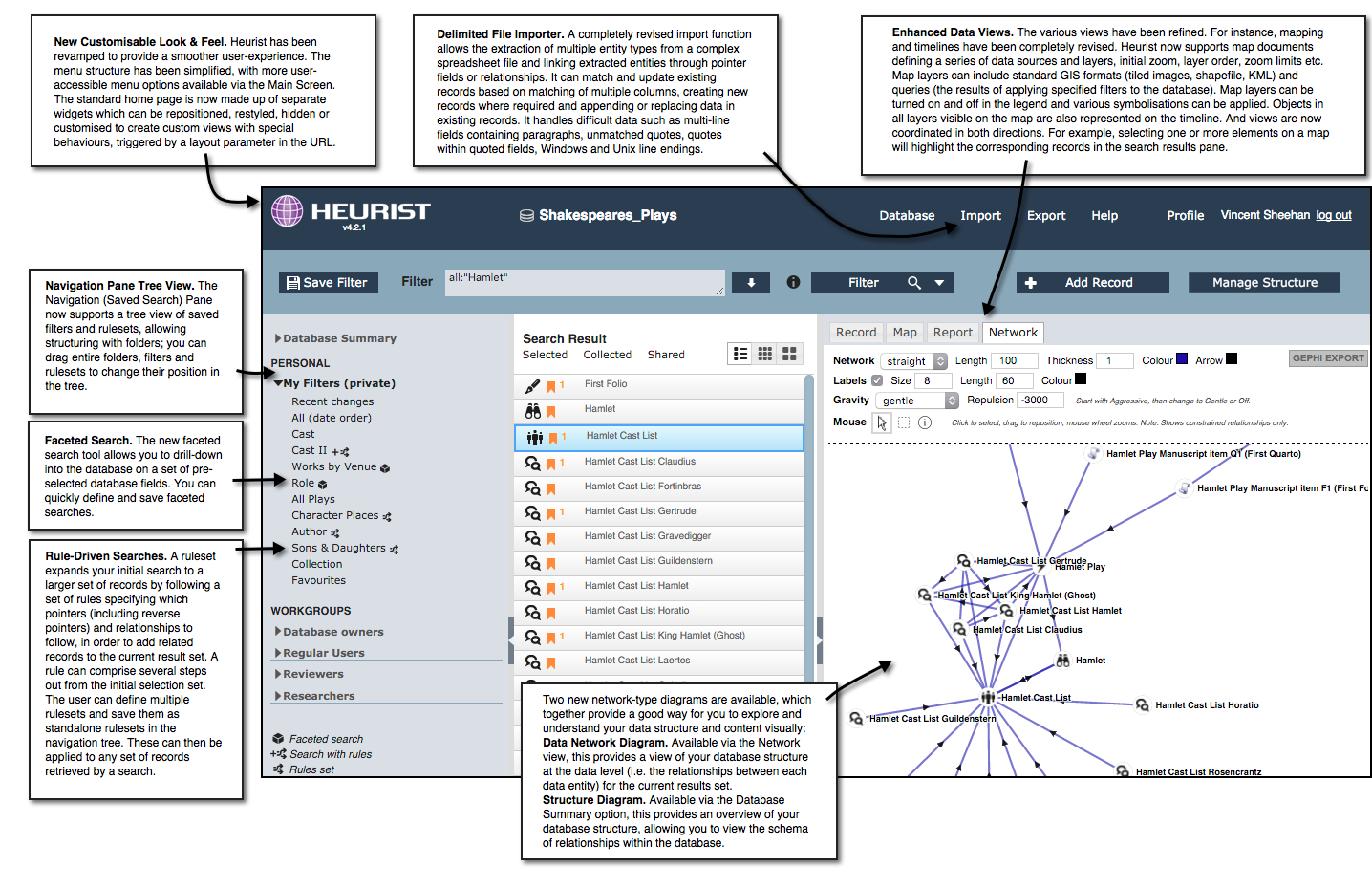
Heurist Version 4 (from ~2016) Explore page showing the functionality of different parts of the page
Although outdated, this is still a useful summary of functions
@todo: redo this diagram with Vsn 6 interface
2.1 Predefined Structures (Record types)
All new databases contain by default predefined structures so that you can enjoy an initial fully-functional and significantly useful database in minutes (rather than days to months). We will show how this works later.
Nearly all the pre-defined structures can be freely modified at any time. You can remove things you don't want, add new elements and change existing ones, directly while editing the data. Heurist is immensely flexible and "iterative" - you don't have to take all the decisions at the start, database structure can grow organically as you start to understand your data or publication needs, or extend your project.
The elements defined include:
- 45 well-structured entity types which are either used in many databases eg. Person, Organisation, Place, Site, Structure, Document, Interview, Event, Life event, Story element, Media, or have specific functions eg. mapping and timeline functions and the creation of websites.
- 25 correctly structured bibliographic entity types which can be used to create a bibliography but are more usefully used for synchronisation with the Zotero bibliography manager.
- 300 'base fields' which can be adapted for a wide variety of uses from names to categorisation, handling media and geographic data, fuzzy dates and connections between records.
- 75 populated vocabularies with several thousand terms, including standard vocabularies such as BIBO, BIO, DCMI-TERMS, DCMI-TYPES, DOAP, FOAF, MUSIC, RDF AND SKOS including semantic references.
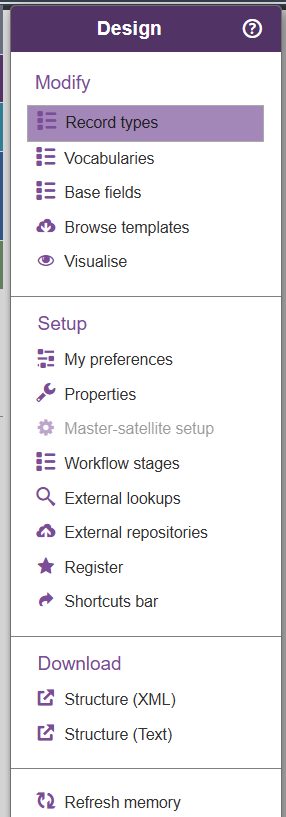
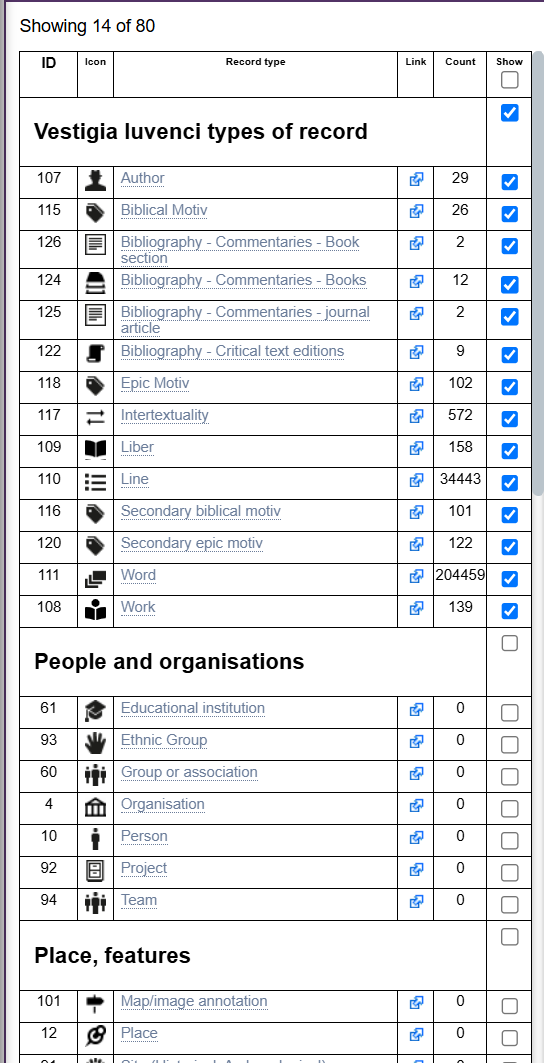
To see the existing structures, click on the Design menu (purple), then Record types and select, eg., the second group People and Organisations (the first group is an empty group as a convenience to hold the types you plan to use most often).
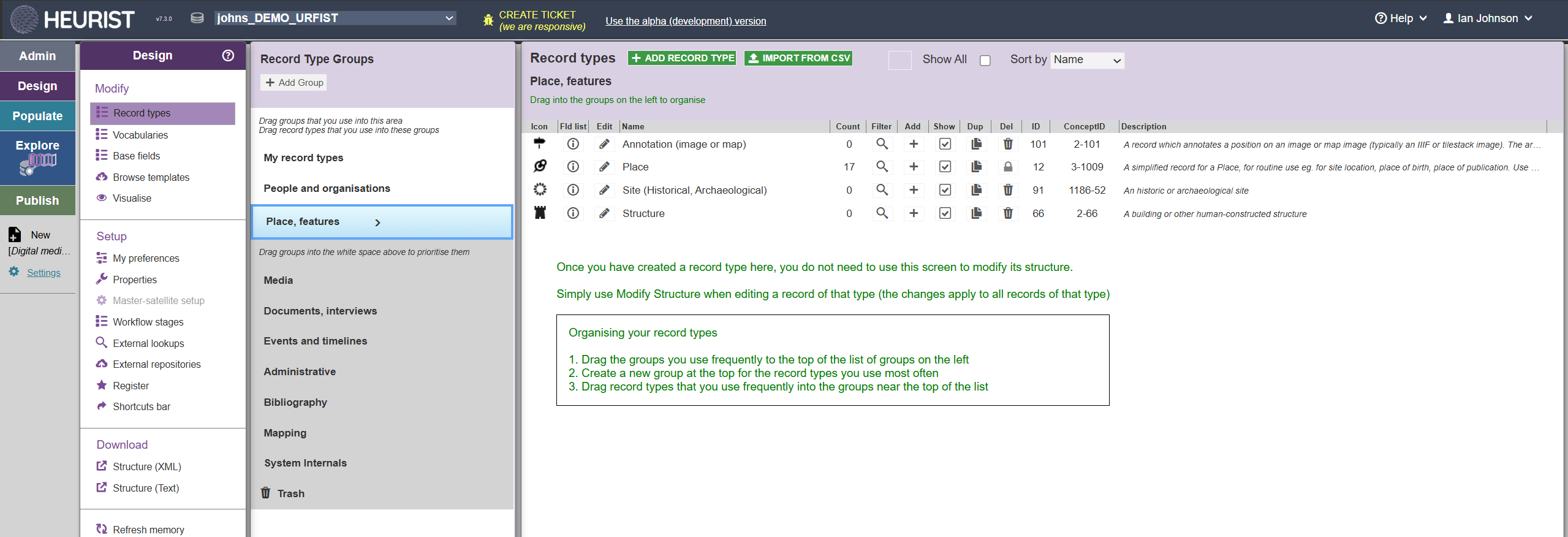
DON'T PANIC! Some people panic because their database is already full of things they (think they) don't want. To simplify the database you may drag the things you don't want into the Trash (they will still be there if you later decide you need them, and they have little or no effect on the performance of the system).
2.2 Tip: Multiple tabs
It's perfectly OK to open more than one tab on the same database, or more than one database in different tabs. This can be particularly useful when one wants to carry out modifications while doing searches in another window or to lookup information in another database. It's also useful for modifying a website design while fixing errors spotted in the database.
Note however that there is no automatic update of database structure between separate tabs, so it may be necessary to reload one or other of the tabs if structural modifications have been made eg. adding new fields or terms.
3. Main Menus overview
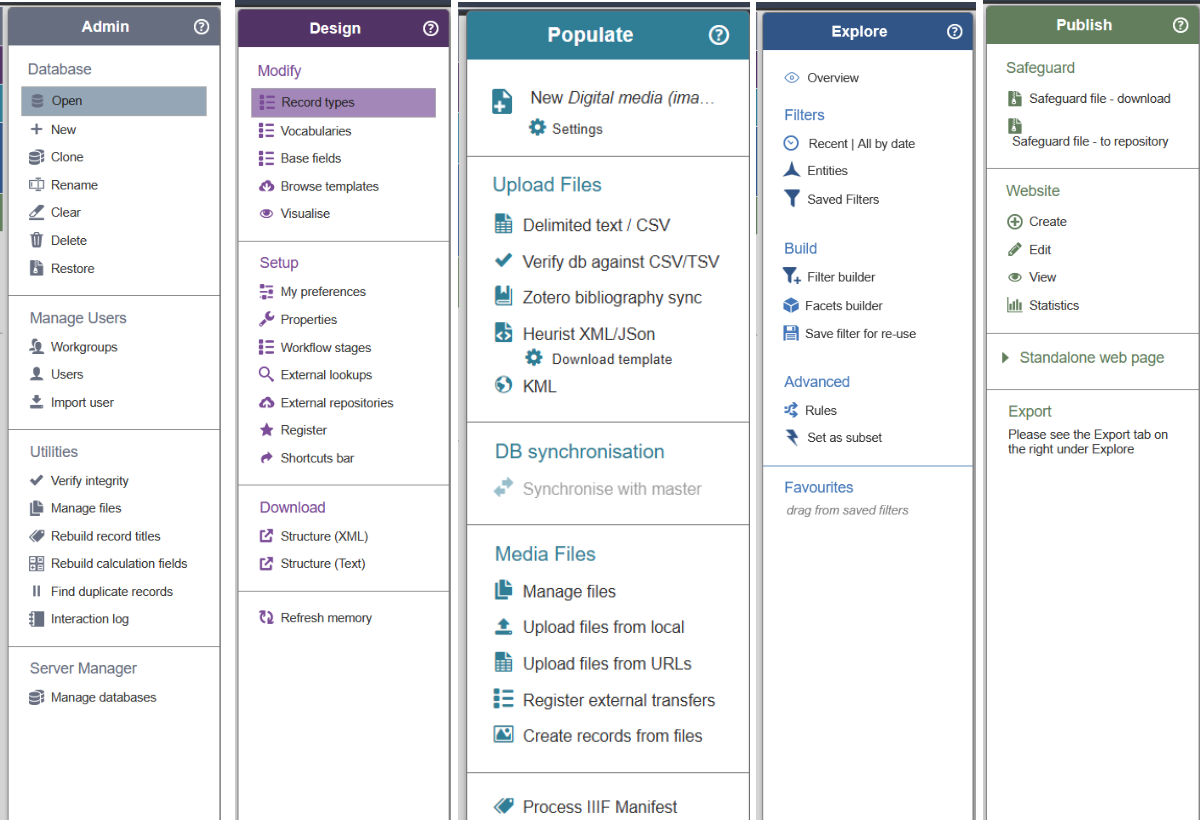
The principal features of Heurist are accessed through a standard menu/sub-menu layout on the left, and one or two panels on the right in which the menu functions are performed. Each of the menu entries on the left opens a sub-menu of functions. We will explore these in the order Admin – Design – Populate – Explore – Publish as this represents a logical workflow (even though most users will go to and from between them).

3.1 Design
Use this to manage your database, including access to Standard Administration tools (depending on your access privileges), such as creating databases, managing users and groups, etc. @todo link to documentation for Design.

3.2 Explore
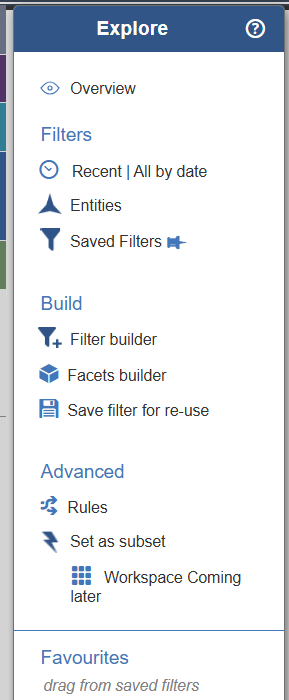
Explore: Use these tools to create queries, filters, and faceted searches, to gain the most out of your data.
@todo link to documentation for Explore
3.3 Populate
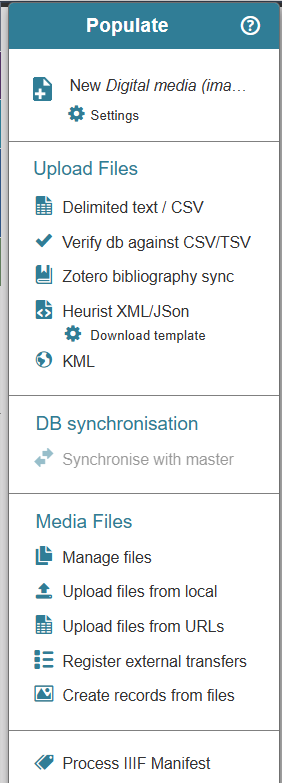
Use these to import data from various formats and export data to various formats. @todo link to documentation for Populate

3.4 Publish
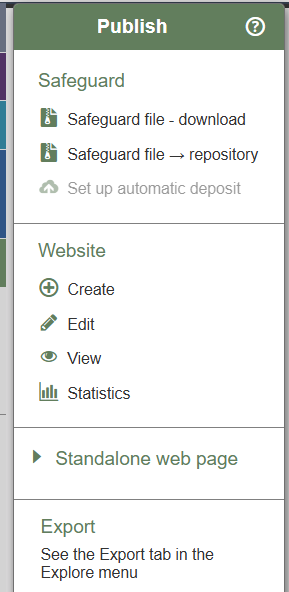
This allows you to publish your data in a variety of formats, including a fully interactive website, as well as a variety of raw data formats such as CSV, JSon, KML, and GEPHI. @todo link to documentation for Publish

3.5 Admin
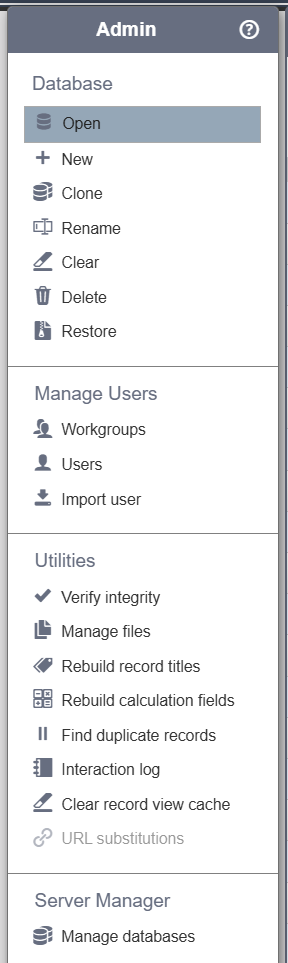
The Admin > Database menu offers a first set of advanced functionalities and allows you to:

- Open another database
- Create a new database, as explained above.
- Clone the current database
- Rename the current database
- Clear the data in the current database
- Delete the current database (be careful, the deletion is irrevocable!)
- Restore
@todo link to 10. Admin.
The Admin > Manage users menu provides functionalities to organise the collaborative work - see § Collaborative work (Workgroups, Users, roles and permissions below)
4. Collaborative work
4.1 Workgroups and Users
Heurist databases provide support for group work and collaborative projects. There can be several users, organised in different workgroups. Each record is owned by one or several workgroup(s), or by one or several individual user(s), and only these groups and individuals can edit the data within the record.
Individuals are effectively a workgroup of one. They are numbered in sequence with workgroups. Workgroup 2 is the database owner (the person who created the database - the owner can be changed by the owner to another user, see Administration, chapter 10).
Heurist's security model for database access allows you to manage groups and users and their access permissions in a controlled and centralised manner.
A workgroup is any set of users (e.g. department, research unit, project group, discipline group etc.), who need to share resources. Users can be members of several workgroups. In order to share the ability to edit a particular record you and your colleagues must be members of the workgroup which owns the record.
You become a member of a workgroup if you create a new workgroup or if you are added as a member to the workgroup (by an Administrator of the workgroup). Workgroups/users can be added, edited and deleted (except workgroup 1 = Database Managers and User 2 = database owner). Two types of access roles “administrator” or “member” are available in each workgroup. New users can also be added or imported from other existing databases. The person creating a workgroup becomes an Admin of that workgroup and cannot be removed from it.
Database structure can only be modified by administrators in the Database Managers workgroup, although other users can add terms to term fields (dropdowns) during data entry. The following table describes each group and the permissions for each role by group.
Group 1: Database Managers : The Database Managers Group is created by default for all new databases. The database creator is given the unique role of Owner. A database can have only one Owner.
- Administrator
- Add/edit/delete records and field definitions.
- Clone, clear and delete the database.
- Run all database administration utilities.
- Carry out any tasks that the Administrators of individual groups can do (whether or not they are a member of that group).
- For example:
Add, edit and view records specific to any group.
Allocate users to any group (as Administrators or members).
Change record Ownership to any workgroup.
Register the database (only available to the database owner, user #2) - Member
- Being a member of the Database Managers Group confers no special rights; they have the same rights as members of any other group.
As well as having administration rights over this group, Administrators in this group are DBAdmins 'SuperUsers' for any database that uses a particular control table and therefore have DBAdmin rights over Group 0 and all other workgroups.
Group >=2: Workgroups : Any number of additional workgroups can be created. The first of these has ID 2 (the owner of the database), another has ID 3 for all “Other users” and subsequent groups have ID 4+.
- Administrator
- Add or remove members from that workgroup
- Define or remove group tags.
- Carry out other tasks (if any) specific to the group.
- Member
- Make, edit and view all records owned by the workgroup.
- Change workgroup Ownership of a record to another workgroup of which they are a member.
- Find, add and delete workgroup tags to/from records.
- Log into a database that has been restricted to a workgroup of which they are a member.
- Enter records in the workgroup blog.
- Manage Workgroups, such as viewing details for other members of the workgroup, but not adding or removing members.
Group 0: All Users : A notional group consisting of all activated Heurist users in the control table (and by extension everyone who might have access to a Heurist database that references that control table).
- Edit records which do not belong to a specific workgroup (the normal default for new records).
- View data in workgroup-owned records that are marked as viewable outside the workgroup (the normal default for new records).
- Bookmark visible records and create personal data such as tags, comments, reminders and notes, as well as saved searches and publication output.
- Create a database.
- Create a workgroup.
- Run some database administration utilities.
- Export database definitions.
Non-logged-in: The Heurist publication mechanism, designed for rendering Heurist data within public websites, bypasses the need to log in to view certain types of data. To be rendered in published output, the data must not be marked as belonging to a particular workgroup and/or must be marked as viewable outside the workgroup which owns the record. Personal data created by a logged-in user is never viewable through this mechanism, and it does not allow any modification whatsoever of the database.
For advanced functionalities, adding new users, assigning workgroup memberships, importing new users, see Chapter 10 Administration.
4.2 Roles and Permissions
Access to a record is determined by:
- Ownership. This determines who can edit a record. The shared information may only be edited by members of that workgroup.
- View Permissions. This determines who outside the Owner can view a record (i.e. record visibility).
“Access”: the access status of records in the database can be defined:
- at the database level for all new records
- by Record Type
- for each individual Record.
- for specific fields within records of specified Record Types
You can set the Ownership and visibility of a record individually. The default is all database users are Owners (can edit) and any logged in user can view. Ownership and view permissions should only be restricted for records which are private to a workgroup.
@todo-link Ownership and visibility
Viewability (Record is viewable by) can be set to:
Any records you want others to see can be made Viewable. They will not be editable by anyone who is not part of the Owner group - because records are never editable except by their owner(s).
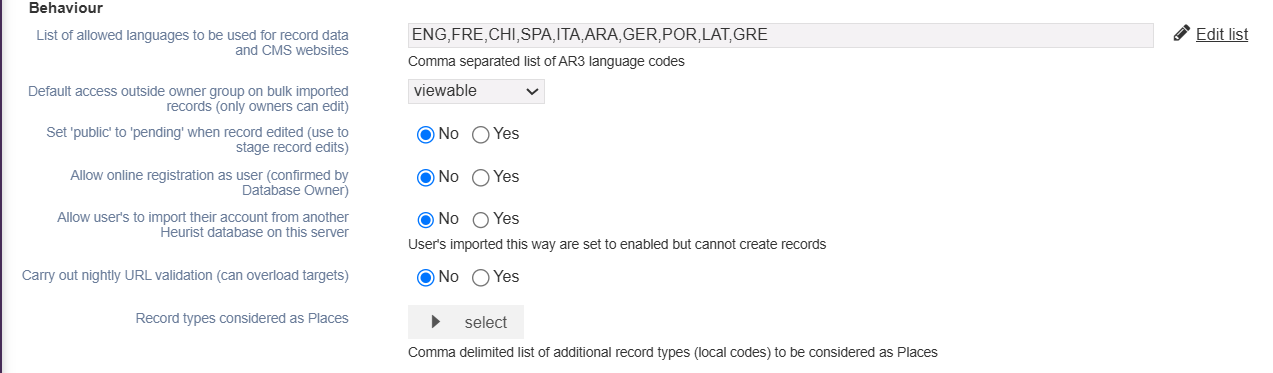
The default access of all new records can be set in the Database properties : Menu Design > Properties, section Behaviour.
5. Useful Functions
If following through the workflow for setting up a database for the first time
you may wish to skip this section and return to it later
- Database Properties
- User preferences
- Visualise the structure of your database
- Help and personal profile menus
- Bugs, suggestions and feature request
5.1 Overview and database properties
Explore > Overview takes you to a summary of your database. This is also shown when you first open the database. The buttons and the list of the commonest entities on this page are clickable.
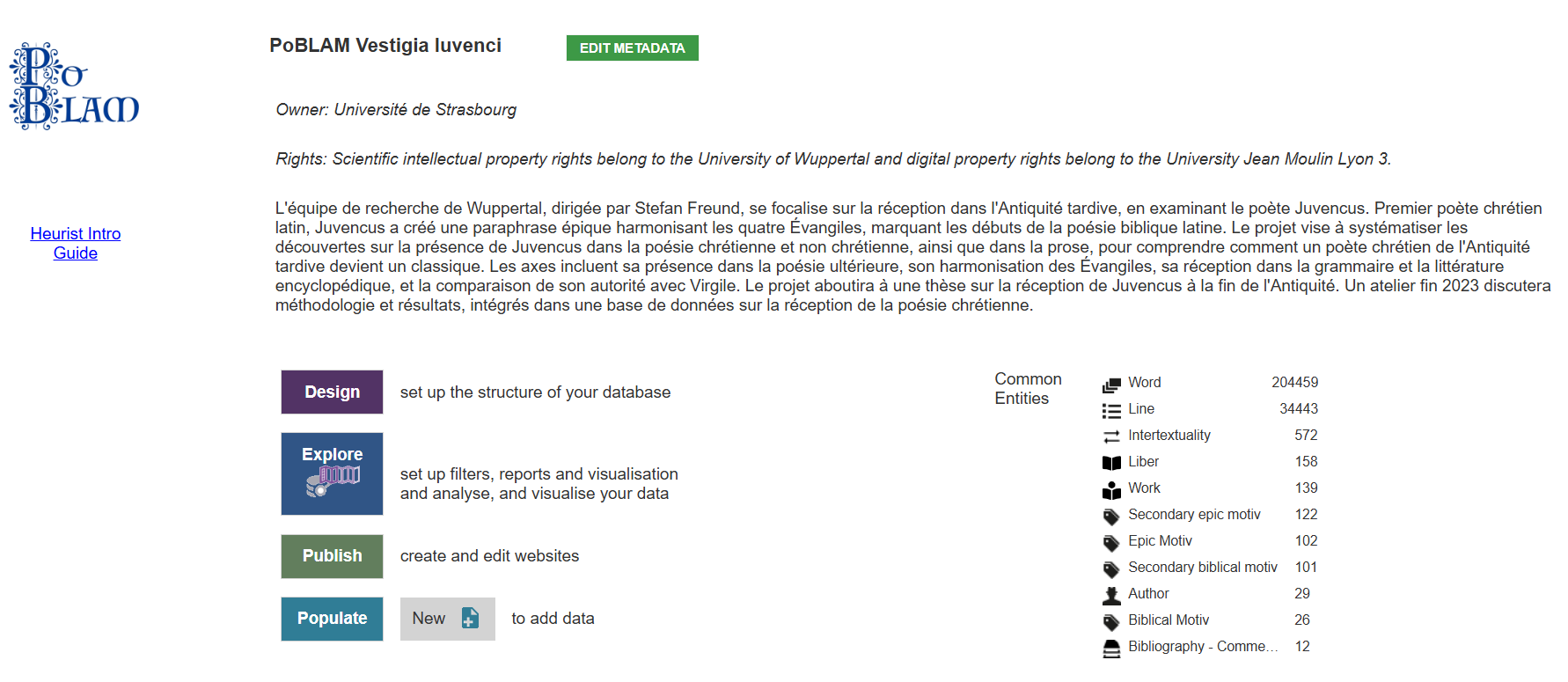
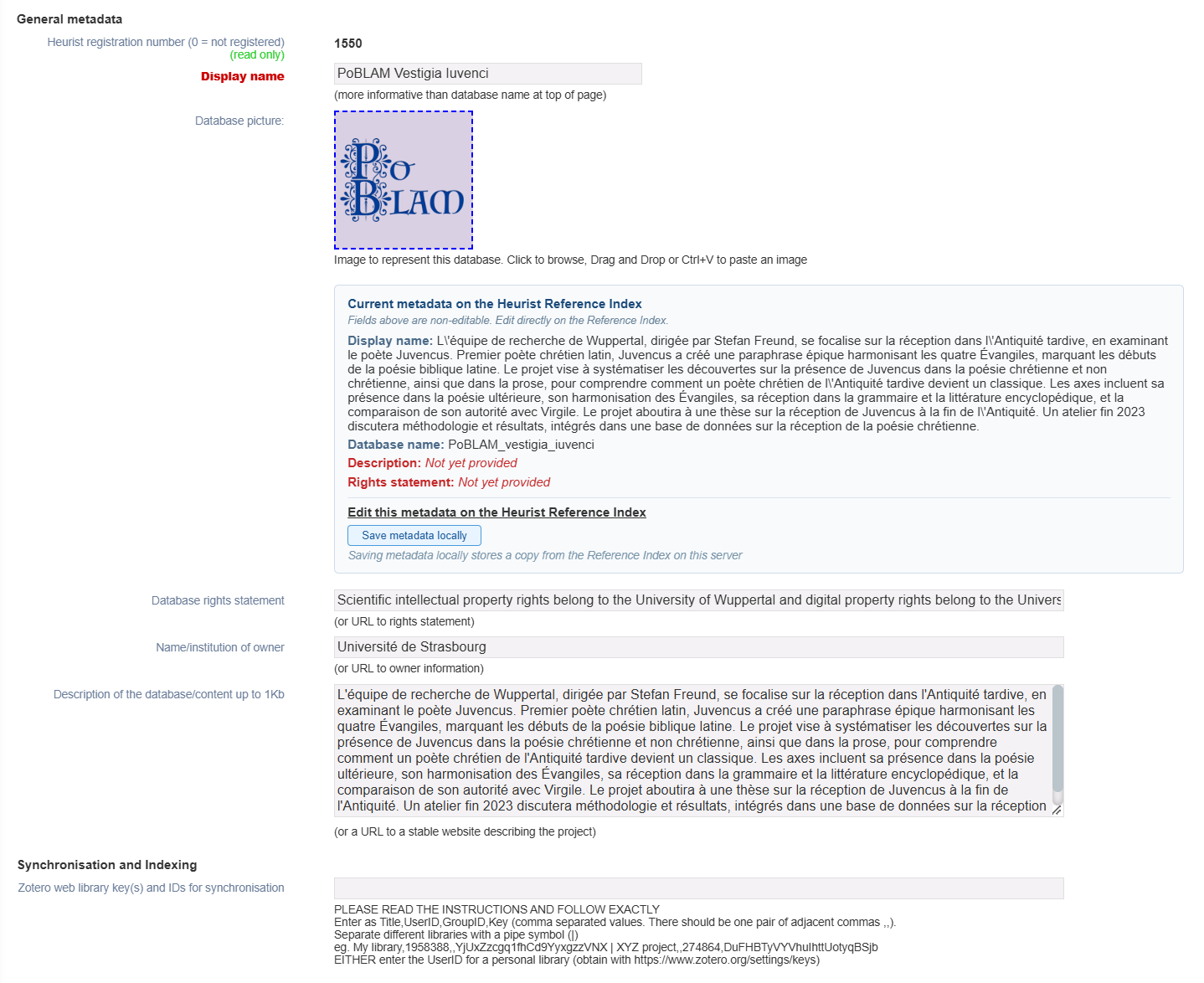
Design > Properties (or the EDIT METADATA button above) takes you to the Database Properties form.
@todo: document all of these
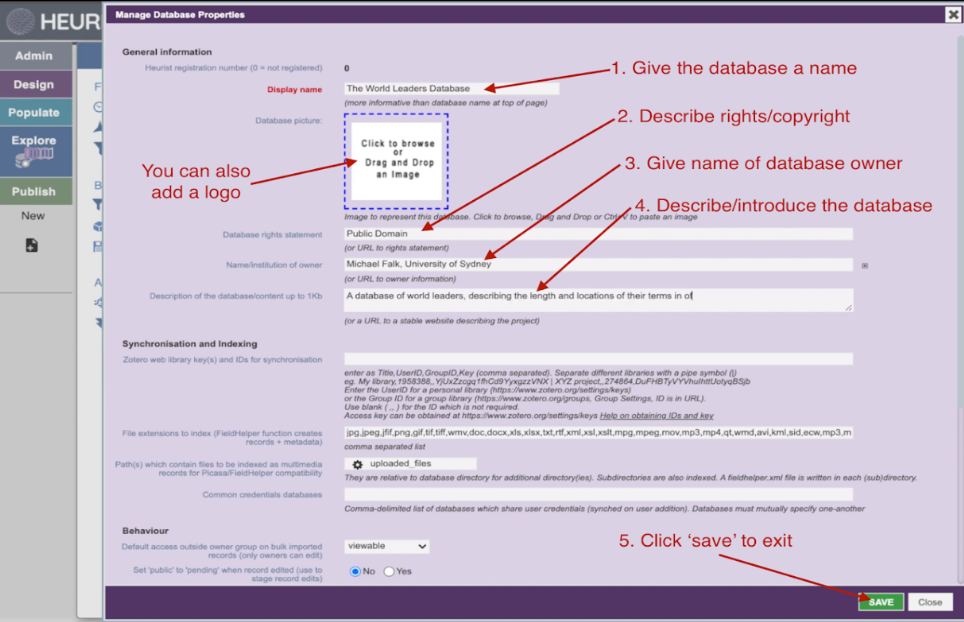
part 2
Basic description The basic information section describes the database, owner and access rights
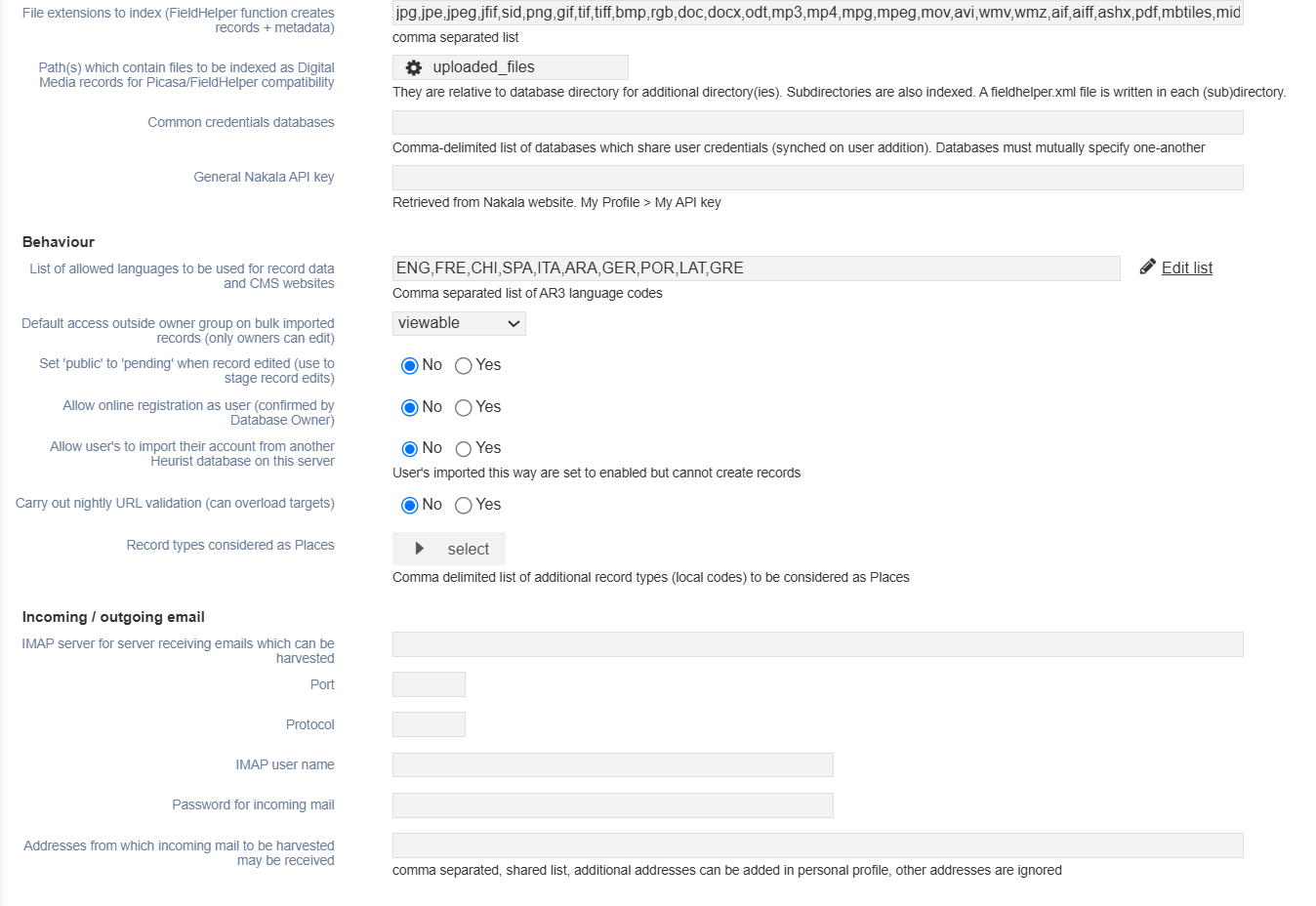
Additional settings
“Synchronisation and indexing”, “Behaviour”, and “Incoming / Outgoing email” on this form allow the setting of a range of behaviours which apply to all users.
Chapter. 3 Basic structuring concepts Two concepts should be mentioned here:
- Access
- Default Access
TO BE CONTINUED @TODO
This determines whether anyone outside your workgroup can see records by default when imported. This can be:
Hidden. Not viewable.
Viewable. Viewable.
Pending. Viewable only if Status is 'Pending'.
Public. Viewable only if Status is 'Public'. :::
5.2 User preferences
5.2.1 Design > My preferences
This function allows one to set up a range of settings which apply to your use of Heurist; they do not affect other users.
*@todo: verify the veracity of the following tip:
As user preferences are stored in your session variables on your web browser, it is important to check the “Keep me logged in for a month” (which is extended each time you log in from the same computer within one month) so that they are remembered.
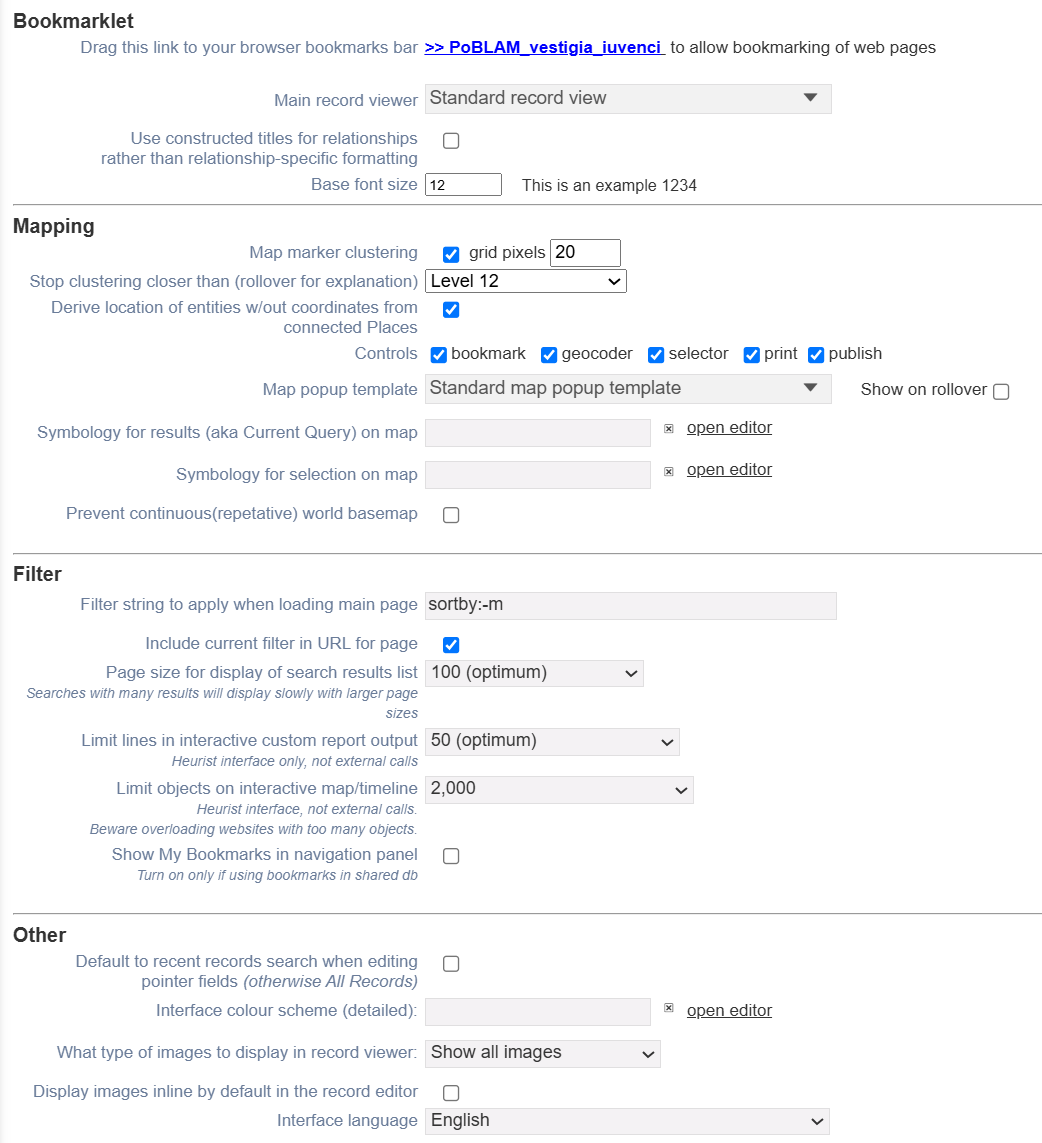
Most of these settings are fairly self-explanatory, but we will thus explain some of the more obscure settings.
@todo: NEED TO rewrite these
Bookmarklet
This function still exists but we do not recommend using it as it does not pick up highlighted text on https:// pages.
- You can drag the bookmarklet to your browser toolbar.
- It lets you capture the information you highlight in any http:// web page displayed in the browser
(including a bookmarks file and search list, such as Google) and analyse it for bibliographic information.
Mapping
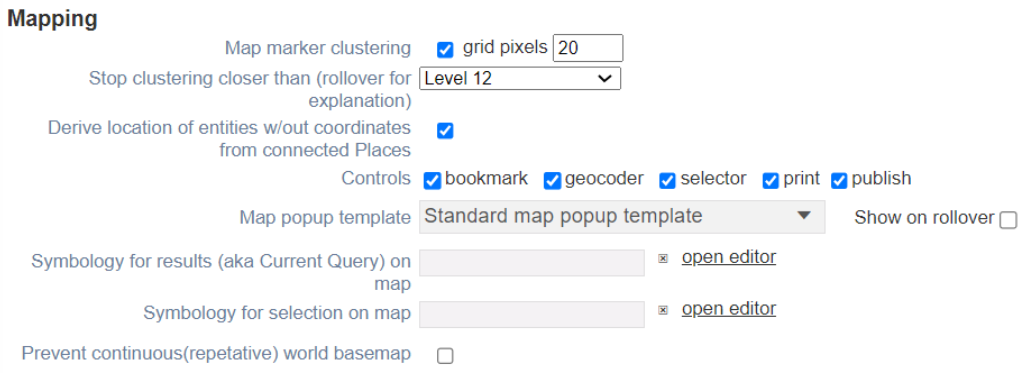
@TODO
Filter
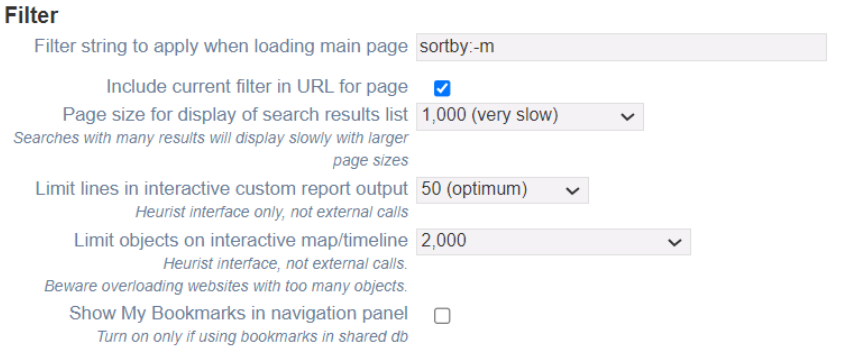
- Heurist filter string to execute when loading the search page.
Add any filter expression to execute when you navigate to the Home Page (you can run a search and copy the syntax here if you wish). The default is to show all records edited within the last week. For example, to show all 'favourite' (or 'favorite') tagged records, use the following syntax: Tag:favourite,favorite - Include current filter in URL for page.
Adds the current search string to the end of the database URL in the browser. - Limits
These settings determine how many records are shown when you run a search, test a report and when you view maps (smaller limits will load quicker). These do not affect published report output. - Prompt for tags when saving records.
Select if you wish to be prompted to add one or more tags to a record when you exit the record and no tags have been set. We recommend that this be selected. - Default to recent records search when editing pointer fields.
When selected, you are shown your most recent record search when entering pointers (rather than all records). - Check for similar records on creation.
Scans your current records for any that are similar to the one you are creating and presents these with a dialog. You can choose one of the presented records or continue to create a new one.
Other
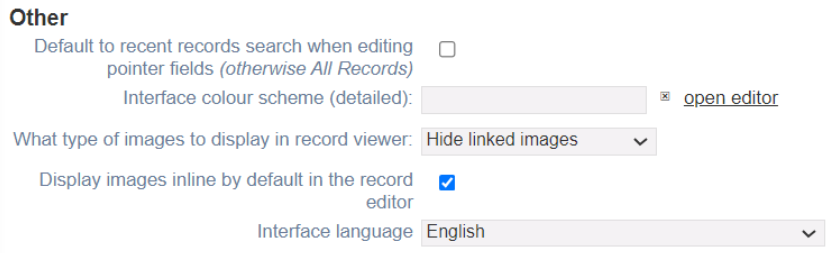
- User interface style / level of user.
Determines the level of help and functionality that is provided based on your expertise. - Interface language.
Select an alternative language for screen UI elements. - Theme.
Select an alternative theme for the Heurist interface. - Show Help text.
Select to show Help prompts on-screen (these affect UI help text only, not field-help). - Show help text for fields.
Select to show Help prompts on data entry forms. - Show My Bookmarks.
Select to show your private bookmarks in the Saved Filters Pane. - Map Marker Clusters.
Where you have a lot of records appearing on a map/location, this option lets you show them as clusters (with record count) instead. Settings are: Grid pixels - the higher the number the greater the separation between clusters. Min count - the minimum number of record needed at a location to form a cluster. For example:
5.3 Visualise database structure
You can view the structure of your database as an interactive network graph. This view is especially useful if you want to understand how different record types in your database are related to one another.
Click ‘Visualise’ in the Design menu to access the network visualisation. To generate the graph, you need to choose which record types to display.
Generally, it is best just to visualise a few record types at a time—the graph can get very busy if you show too many types. To choose which record types to display, click the dropdown at the top left of the visualisation:
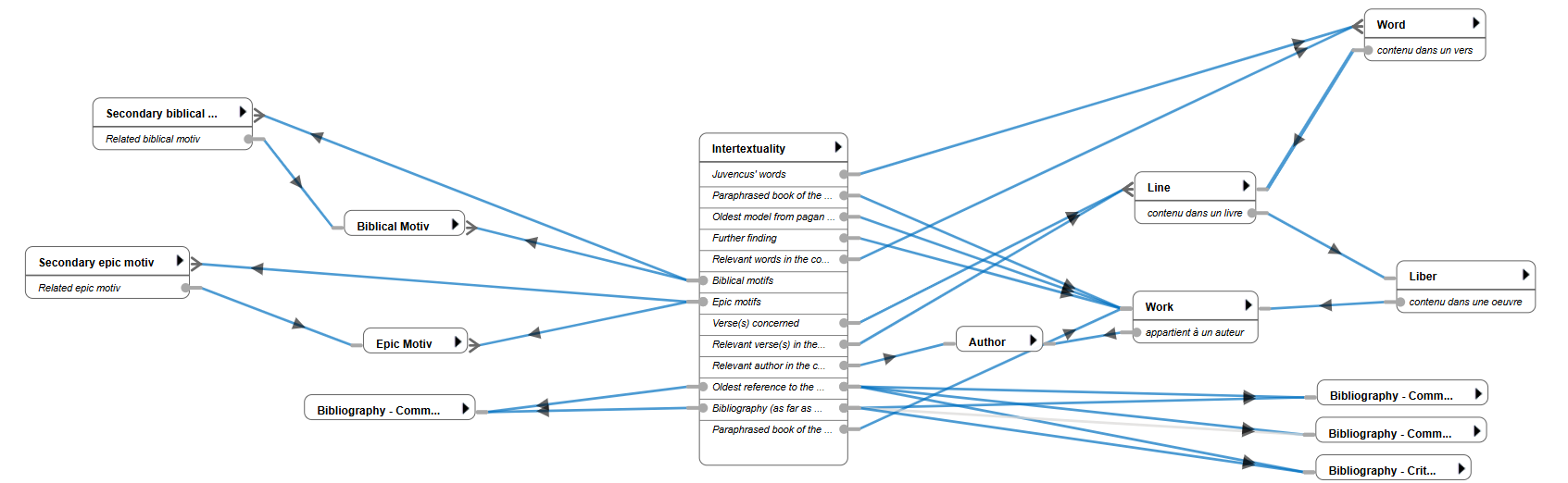
Click the ‘show’ checkbox next to each of the record types you are interested in.
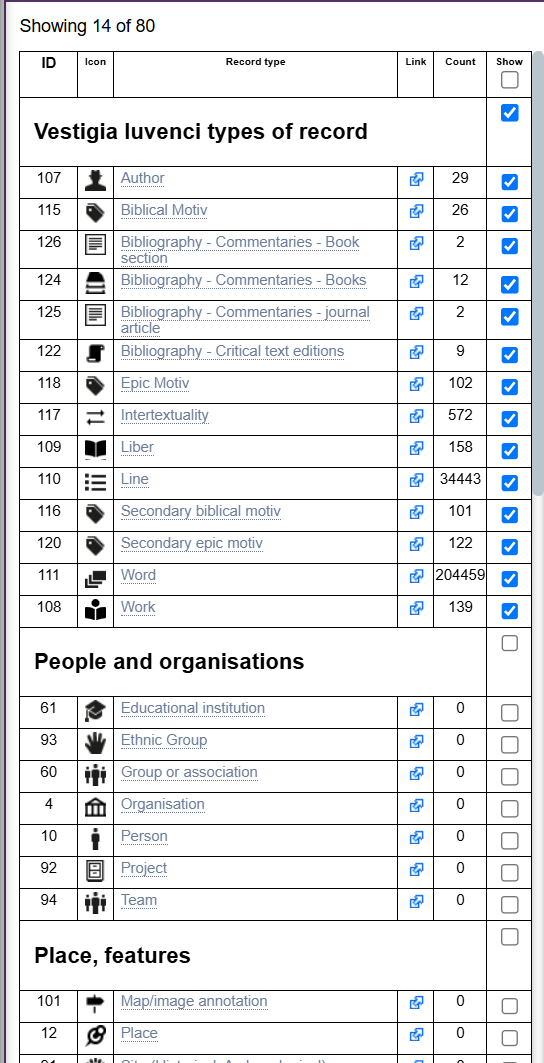
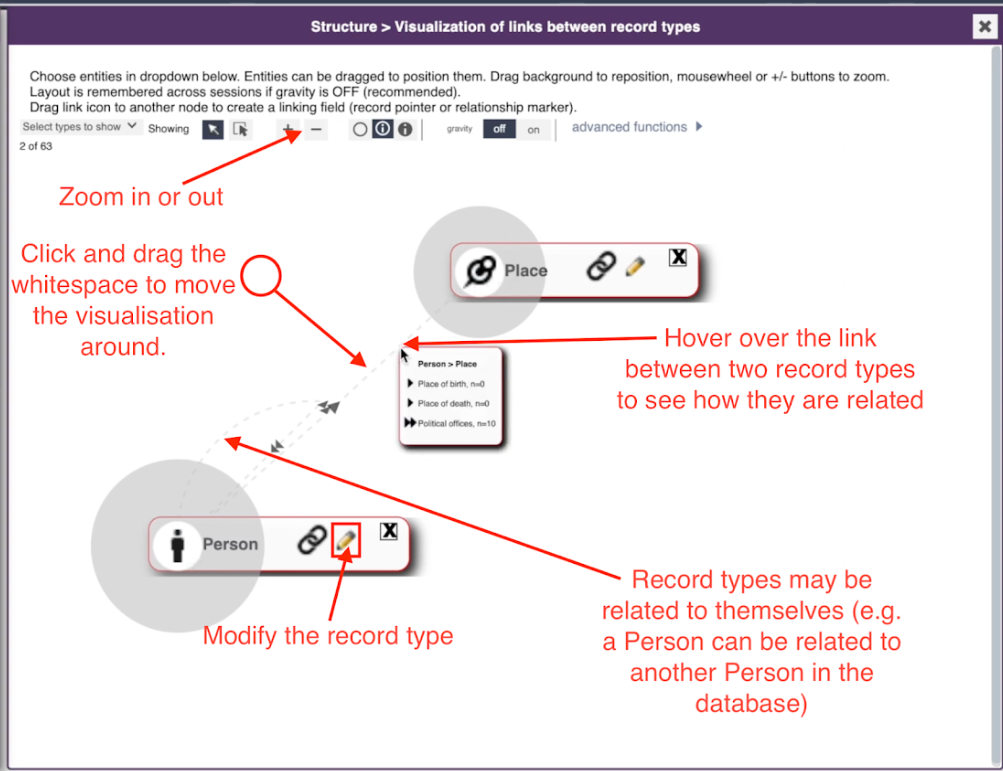
To move the visualisation around, click in the whitespace and drag with your mouse. You can also click and drag the displayed record types. Click the ℹ️ icon to view more information about each record. Click the ✏️ icon to modify the record type. If you hover over a connection between two records, you will see information about how these records are connected to one another. For example, in this database a ‘Person’ can be related to a ‘Place’ in three different ways: the Place might be the Person’s place of birth, the Person’s place of death, or it might be a Place where the Person held a political office. Each of these relationships—place of birth, place of death and political office(s)—is a field in the ‘Person’ type, and can be seen in the data entry form for a ‘Person’.
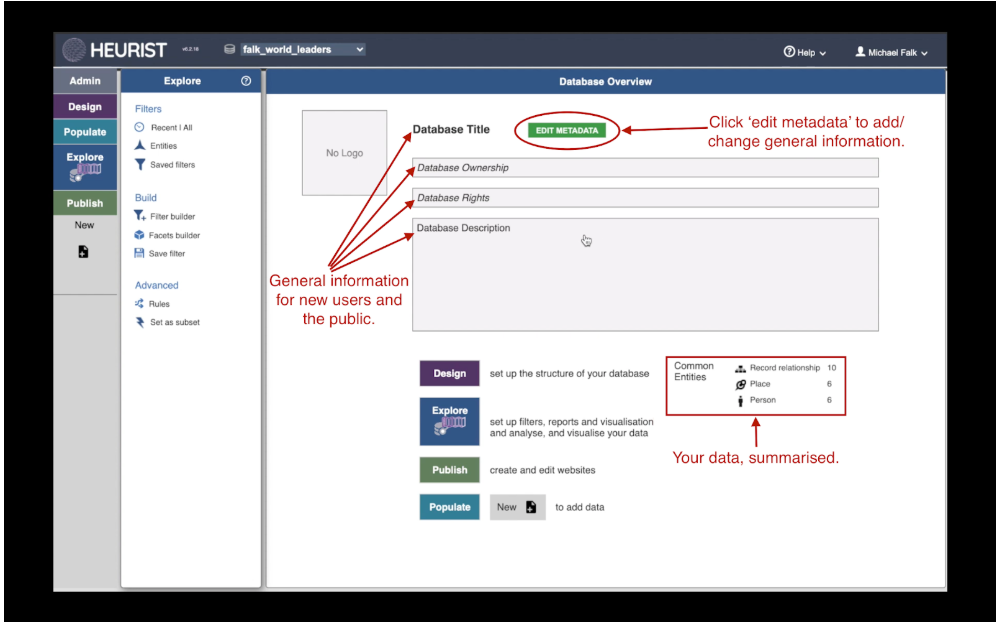
5.3.1 The Explore Overview Screen**
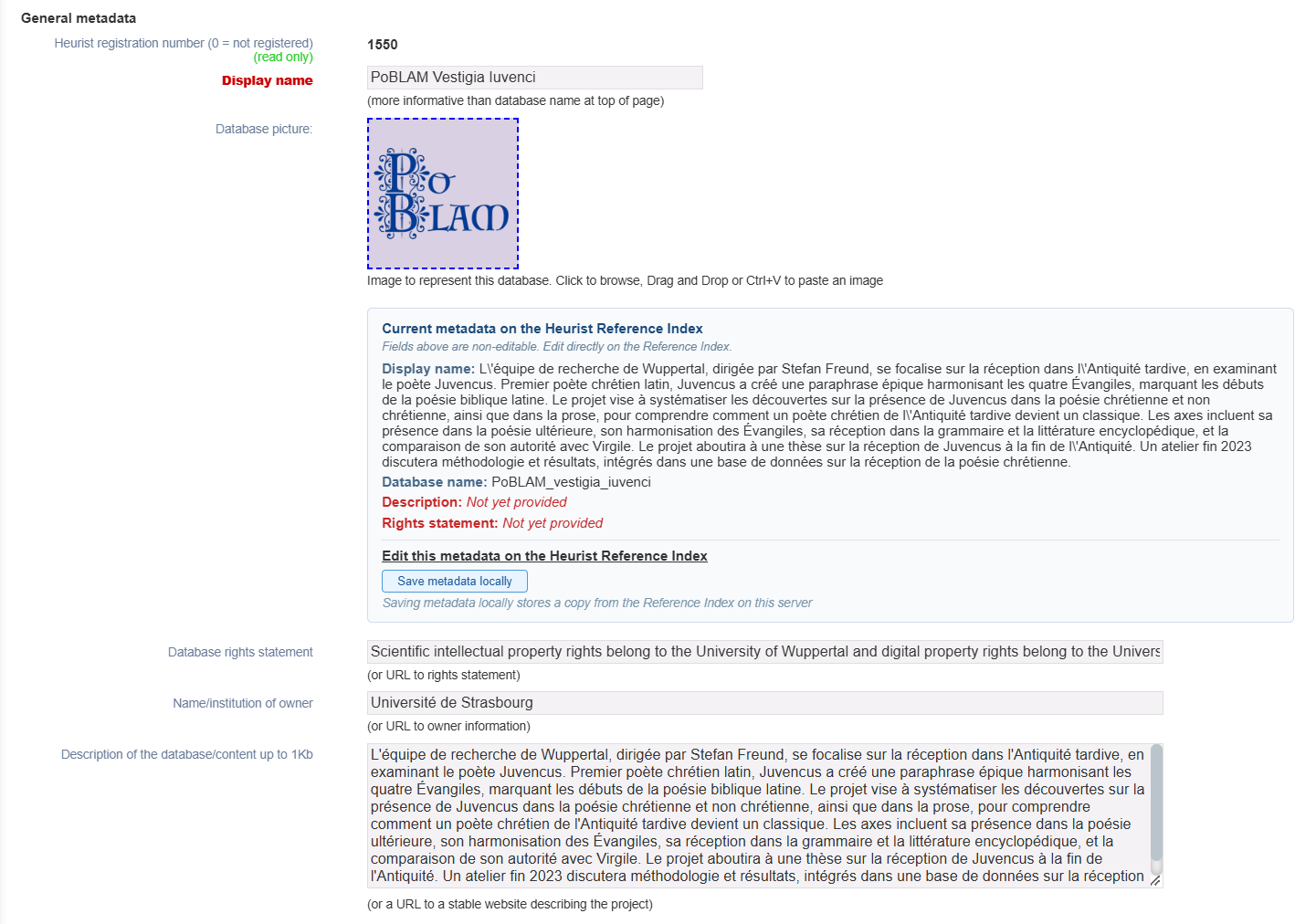
When you log in to or reopen a Heurist database, you are taken to the Explore menu and presented with the overview screen. To edit the database title, description and other information, click ‘edit metadata’.
@todo: The metadata editing has been greatly improved as of late July 2026 and will require re-documenting
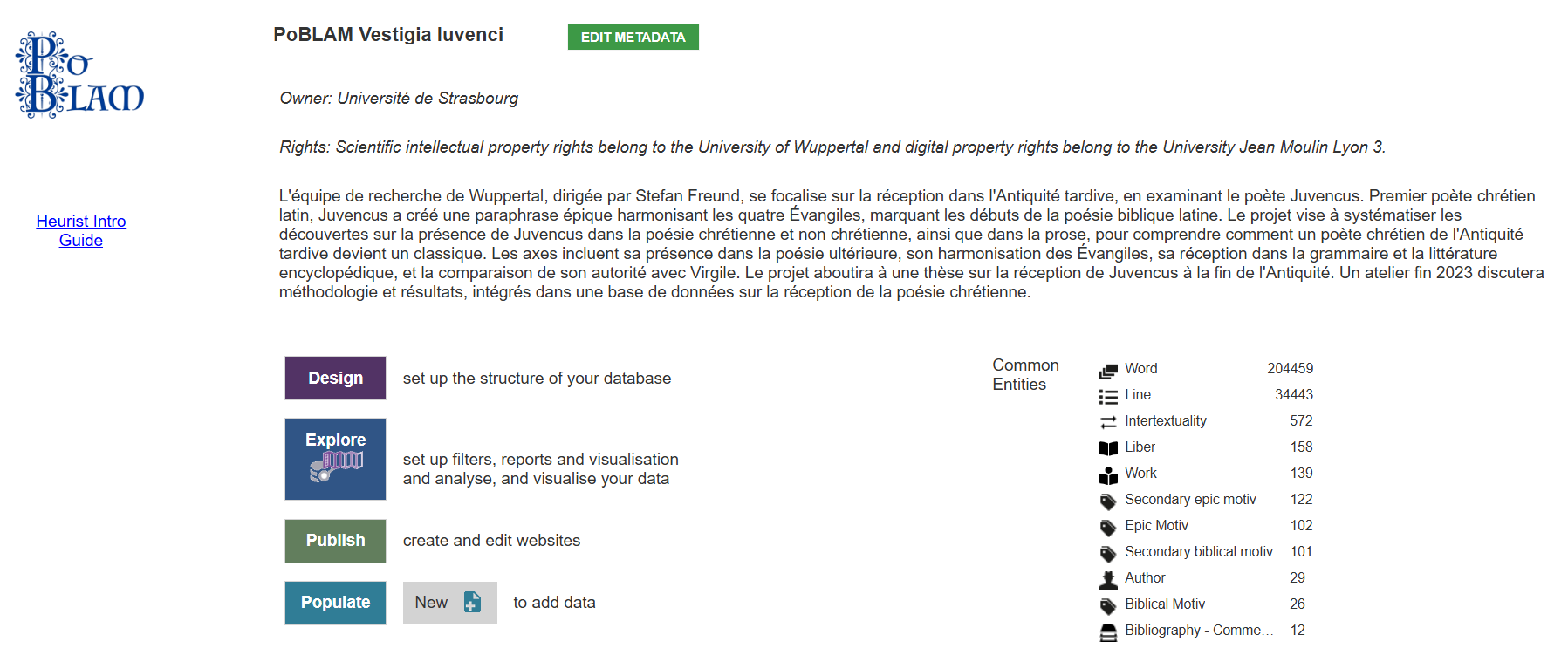
In Design > Properties it looks like this. The metadata is read from the Heurist Reference Index for registered databases.
5.4 Simple Filters
Heurist comes with some simple filters pre-configured, so that you can do some basic data exploration at the click of a button:
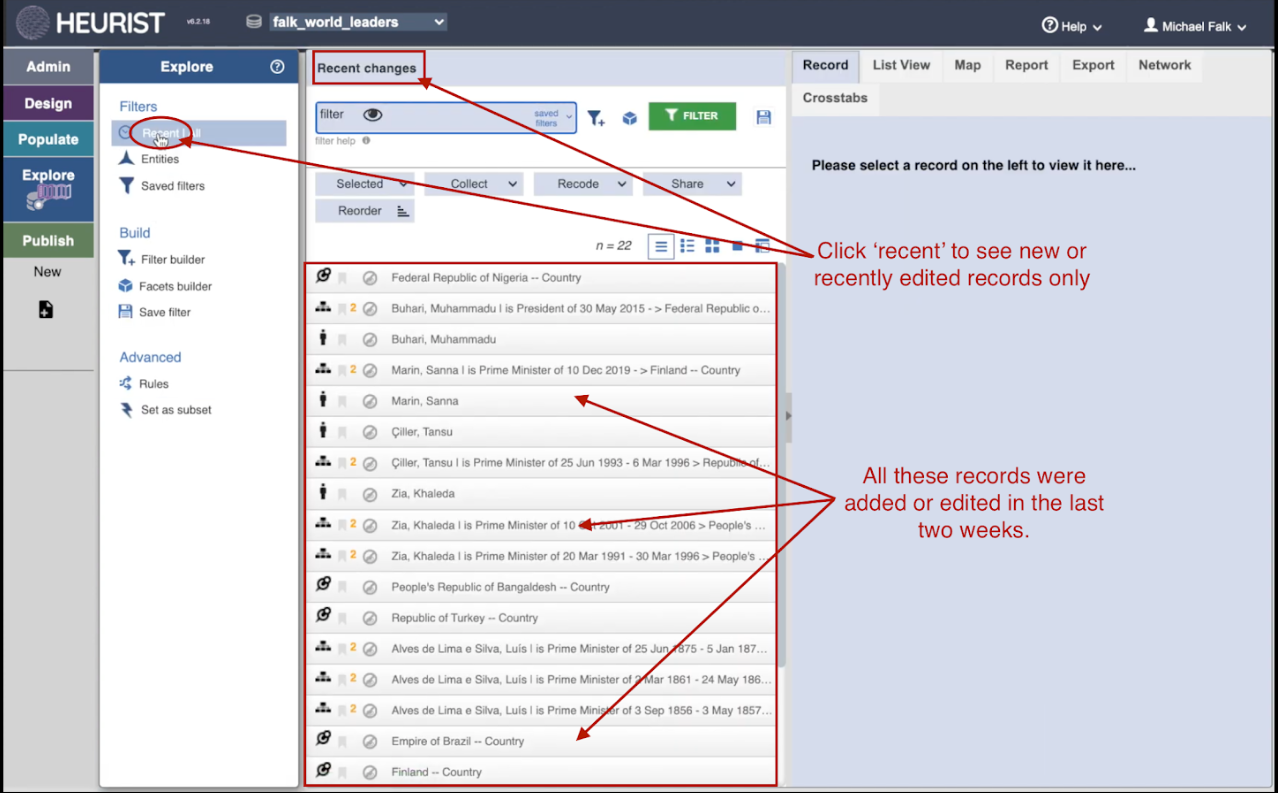
5.4.1 See Recent Changes
You can filter out older records, and just show records that have been entered or edited in the last fortnight. To do this, click ‘recent’ at the top of the Explore menu. This can be useful while you are in the data entry phase of your project, when you want to see the records you’re currently working with.
5.4.2 See All Records
To view all the records in your database in one long list, click ‘All records'

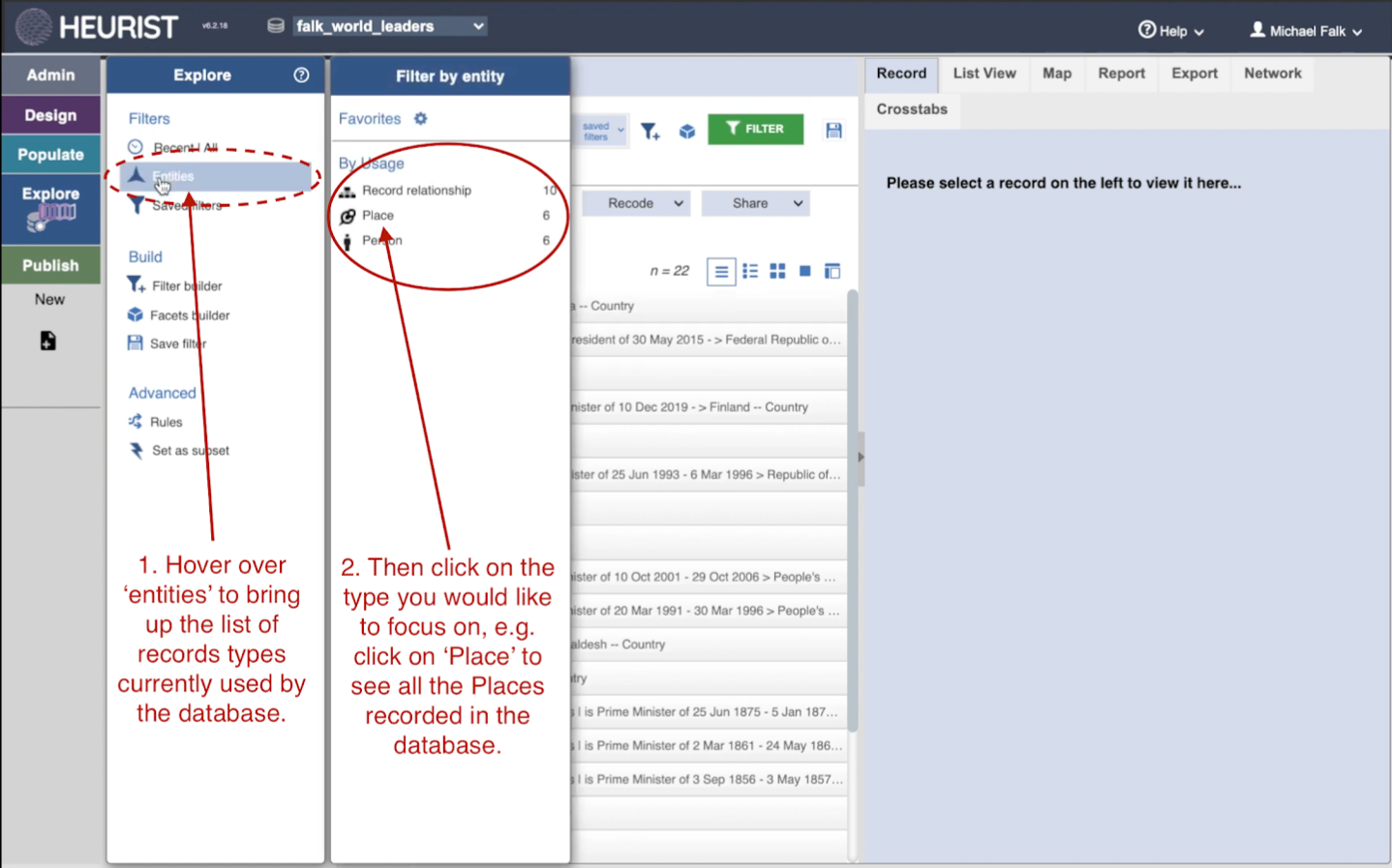
5.4.3 Filter by record type/entity
To see all the records of a particular type, hover over ‘Entities’. This will bring up a list of all the record types currently used by your database (e.g. Place, Person). Click on the record type you are interested in to see all the records of that type.
5.4.4 Finding records quickly
There are several options to quickly find useful sets of records (entities).
- Entities gives immediate access to a search by each of the record types in the database.
- Saved filters has, by default,
- Recent changes (within the last week)
- All (data order).
- Whatever filters you have created and saved.
These are also accessible at all times through the small *Navigate *menu under the top level coloured menus.
Click on Recent changes and edit the string in the filter box (behind the eye symbol) to change week to hours, days, months, years or for more than one and then save as an additional filter.
All (date order) shows the most recently modified records at the top.
5.5 Help menu
Situated at top right of the screen:
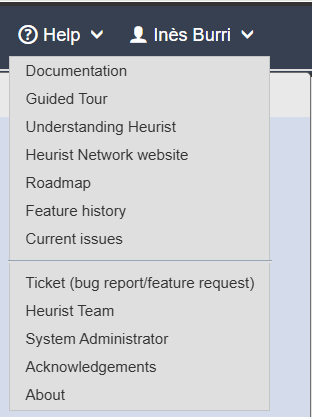
HELP (web links, open in new tab)
- Documentation takes you to the online help, which is a searchable version of this user manual.
- Understanding Heurist takes you to this user manual.
- Heurist Network website: the Heurist project website
- Roadmap: a guide to our plans for Heurist development over the next 12 months or so. It is generally updated annually.
- Feature history: a compact list of all the changes made to Heurist month-by-month since 2016. It is generally updated once every 6 – 12 months
CONTACT (popup or email links)
- Bug report / feature request: sends the development team an email with the user’s message and information about the browser in use, the database, the software version and the user’s email address.
- Heurist team: compose an email to the Heurist team (management and support)
- System administrator: compose an email to the administrator of the server running this database
- Acknowledgements: acknowledgements of people, software and graphics used in this project
- About: information about the current version and licencing of this software
5.6 Personal profile menu
Situated at top right of the screen:

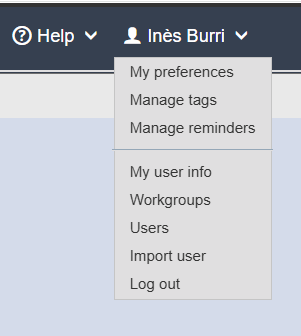
My preferences displays the User preferences form to manage your Heurist environment.
To change the tag names, edit them as required and click Update Tags. For example, if you change 'History' to 'Historical Studies', all the bookmarks tagged 'History' will now be tagged 'Historical Studies'.
To replace a tag, click the replace option for that tag, select an alternative tag and click Replace.
To delete a single tag, click the Delete icon for the tag.
To delete multiple tags: select the checkbox for each tag you wish to delete and click Delete Selected Tags.
Remember to click Save Edits when complete
- Manage reminders: The Manage Reminders option lets you view, edit and remove any reminders you have set via the Reminders section in the righthand panel of the data entry form.
To remove a reminder, click the Delete icon next to it.
To edit a reminder, click on the reminder record title.
This opens the Reminder form, where you can change the reminder details.
Remember to click Save Edits when complete
- My user info: displays your user profile for editing, described in detail under Manage Users @todo:link
- Workgroups: displays the workgroups editing form (for workgroups of which you are an administrator), described in detail under Manage Workgroups @todo:link
- Users: displays the form for editing users (if you are a database administrator), described in detail under Manage Users @todo:link
- Import user: allows database administrators to browse to another database and add user profiles from that database to the current database.
- Log out: logs you out of the database and changes to Log in, allowing someone else to log in on this browser.
5.7 Ticket system
Heurist is the product of working with a very large number of projects over a period of two decades. We greatly value feedback about possible improvements, bug reports or just things which annoy you. Please do not hesitate to send us bug reports and feature requests using the ticket system which is available in the top bar of the Heurist interface and in the Help menu.
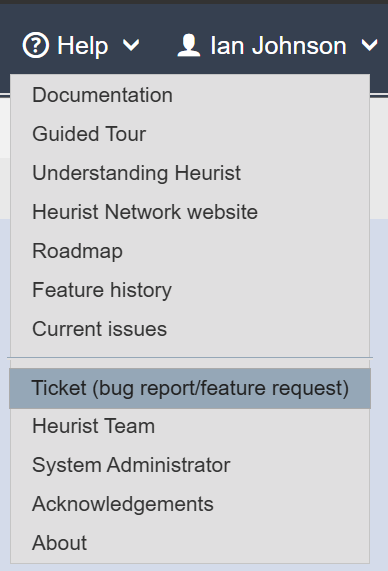
Help > Ticket (bug report / feature request) allows users to report bugs or issues encountered when using Heurist, or send comments, feature requests and enhancements to the Heurist development team (general queries can be sent to the team via the page on Heurist Network Association). There is also a link to report bugs or requests a the top of the data entry form.
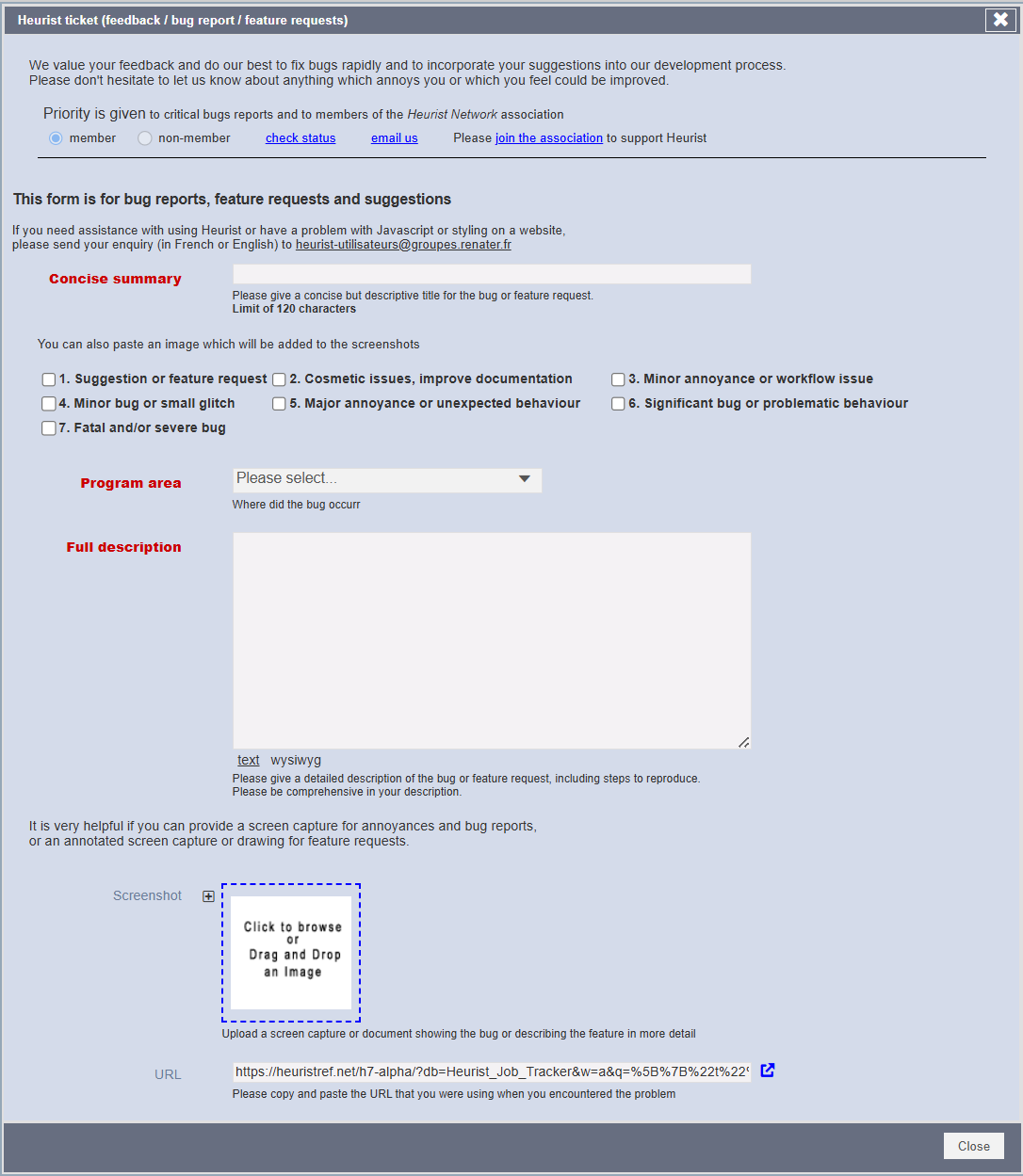
Please provide a screenshot (you can insert two in this form) as this is very helpful in understanding the source of bugs. The function automatically reports the server and database in use, the web browser version and your email address.
You can insert screenshots from the clipboard while editing the text fields with Ctrl-V or Cmd-V (you do not need to click on the image box). To insert a second screenshot, click on the + sign to get a second image box before inserting
6. Modelling your Data
There are several different kinds of database, but the most widely used is the relational database. You will be familiar with relational databases if you have ever worked with Microsoft Access, FileMaker, MySQL or Postgres.
In a relational database, the data is organised into tables. In a table, each row represents one record, and each column represents an attribute. Every row of the table has exactly the same structure, which any Humanist will immediately recognise as somewhat out-of-sync with the nature of Humanities data! Here is an example of such a table, to represent a CD Collection:
ID | Artist | CD |
|---|---|---|
1 | The Beatles | Abbey Road |
2 | Oumou Sangaré | Mogoya |
3 | Hariprasad Chaurasia | Jugalbandi |
This way of representing data is ideal for data that is tightly structured, highly standardised, voluminous and constantly changing, such as transaction records in a bank. But it is difficult to use in Humanities research. To use a relational database, you need to carefully design each table in advance. If you are trying to represent a complex entity such as a person, artwork, or historical event, it may be necessary to create many tables just to describe individuals. If you want to change the database, you need to edit the 'schema' that defines all the tables. Such technology is not suited to Humanities research, where data is loosely structured, typically low-volume, has many missing values and is characterised by many connections between entities. For this reason, Heurist has elements of both a relational database and a 'graph’ database, and broadly speaking is what is called a NoSQL database (although it is built on top of the world’s most widely used Open Source relational database, MySQL).
You don't need to worry about tables and columns in a Heurist database. Instead, you decide what kinds of entities or record types you need, what properties or fields they need, and what record pointers or relationships should exist between them.
A Heurist database is best understood by a diagram which identifies the different entities in the database, and shows how they are related. You can actually generate such a diagram of your database using the Visualise tool.
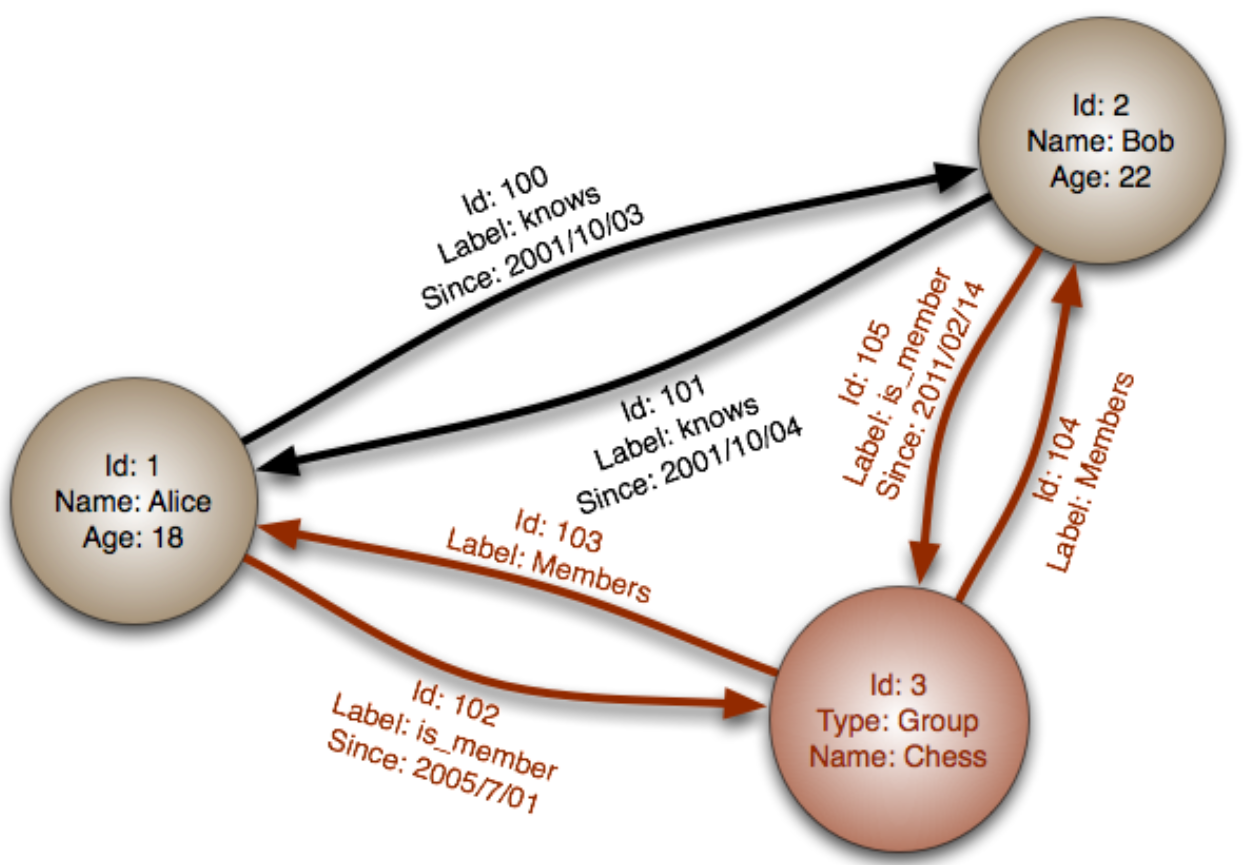

Diagram of a Graph Database (Wikimedia Commons)
6.1 Iterative modelling
Heurist makes it easy to model your data in this way. Unlike most database systems which require extensive advance analysis to set up a data model and work out all the connections, lookups, fields etc. (since everything must be defined in advance to avoid expensive and delaying reworking of the structure and programming), we strongly encourage a highly iterative approach in which one only sketches the broad outline and the detail is filled in as you go along. A simple high-level overview model can often be set up in a matter of hours, or even minutes. Let's take the case of a study of travel and trade (by ship) between Mexico and the USA in the 19th century.
6.1.1 Break your problem domain up into distinct entities
Start by identifying all the entities which make up your domain: people, organisations, cultural groups, places, events, documents, images, albums, series, compositions/movements, plays/acts/scenes.
Pay particular attention to defining component parts or variants which may need a specific set of descriptors (attributes) such as instances of education or service (described by institution, degree, unit, rank, dates etc.) or variant attributes for different types of structure, object or event. These will typically be modelled using a child record pointer @todo:link.
Entities First we make a list of the entities we are likely to need
Note that Heurist typically refers to these as Record types for historical reasons - when first designed we thought that this term was more familiar to researchers used to MS Access and other databases than the term Entities.
For example you migth make a list like this:
- Ships
- Ports / places
- end (per voyage)
- start,
- port-of-call,
- Voyages
- People
- Organisations
- Roles of people
- passenger
- crewman,
- engineer,
- captain,
- purser,
- navigator,
- pilot,
- Roles of organisations
- receiver
- charterer,
- owner,
- insurer,
- shipper,
- Units of cargo
- Illnesses (events of illness applying to an individual)
- Outbreaks (events of the same illness applying to many individuals on a voyage)
- Epidemics (events of an illness at large in a broader community)
This will take a few minutes, but it is time worth spending. We can add more later if needed.
6.1.2 Define the connections that you expect to see between entities
Heurist makes it very easy to define connections between entities through simple connection fields (Record pointers and Relationship markers) in the data entry forms.
Connections
Then we can think about how these connect
Note that there may be 'edge-cases which are not covered, such as change of ship within one voyage, but one should never make a 'perfect' model; some 'reasonable case' assumptions should be applied which are acceptable because there is noise in the data in any case.
- A voyage is connected to a specific ship
- Voyages are connected from a start port to an end port with a series of intermediate ports
- Voyages are connected to people who have a role over a specified time period (or voyage/voyage segment). Connecting people to the voyage/segment is better than connecting them to the ship, because the ship may participate in many voyages but roles can change.
- Cargo is loaded at one port and unloaded at another
- Illnesses are connected to people with dates of illness
- Outbreaks are connected to a voyage (or segment) with dates and to people who became ill
6.1.3 Define the fields (attributes) that you wish to describe for each entity type
Heurist provides all the normal field types plus some less common ones, such as fuzzy dates, geographic objects, file/image fields (local, remote, media streams and IIIF) and the previously mentioned connection fields.
Attributes
Finally we can consider the basic attributes of these entities (the may be others which apply to specific projects and can be added later):
- Ships have
- tonnage, etc.
- name,
- type,
- Voyages have
- possibly a name.
- start date
- end date,
- Ports have
- location
- name
- People have
- Some may vary across time/voyage/segement.
- gender,
- name,
- profession etc.
- Illnesses have
- outcome and other possible information eg. treatments
- name,
- start and end date,
- Outbreaks have
- other info such as notes.
- name of illness,
- start and end dates,
- Ships have
We can now start creating our database with no further work. It is probably a good idea to draw up a simple entity-relation diagram such as the one below, but it is not even necessary. Once the database has been created you can get Heurist to show an entity=relationship diagram with Design > Record types > Visualise.
@todo: Insert the voyaging entity-relationship type
6.2 General pointers for good database design
We recommend re-using generic (base) field types (e.g. Name/Title, Primary/preferred image, Short Summary, Start date, end date etc.) and to reuse the same base field type for similar purposes in different record types. This reduces complexity since you are using one field definition for several record types in place of one for each. It also promotes equivalence between similar fields in different record types.
For example, the title of a book, a chapter, a journal article or a painting, the name of a building, a historical site, a person or an organisation, can all use the same field definition and are generally used as a main component of the record’s constructed title @todo link.
Similarly, primary image, short textual summaries, geographic locations, attached files, URLs and dates typically use the same field definition for which special handling has been developed (e.g. the display of primary images in record views, dates in timelines, geographic locations on maps). Even if you do need to create a new field definition, try as far as possible to reuse this between record types, for the same reasons as above.
6.2.1 Iterative design
If you decide to change your data model later you can update the record/field types, without having to rebuild the database or re-enter data. In this way the database can grow as your research progresses. Changing database definitions does not invalidate existing data. There are, however, a few restrictions on changes to your record structures:
- If you remove a field, then the data will no longer be visible in certain views. However the data is never lost (unless you check an additional box asking to have the data removed), and reinstating the base field (which cannot be deleted if there is data associated with it) will reinstate the data.
- Only certain changes of field type are possible. For instance, you cannot convert text fields directly to term fields (controlled lists). To do so you will need to export a CSV file, create a new (terms) field and reimport the data into the terms field; the values read will create new terms in the vocabulary attached to the field. Overlapping terms may then be combined in the Vocabularies editor.
6.3 Populating the database
Once your database has been created, data can be entered manually through the standard date entry form. They can also be entered in bulk by importing data sets such as spreadsheets (exported as a CSV file), Json or XML (transformed from another data system) or KML (geographic data typically from a GIS or mapping system), from structured or semi-structured data collections, and by harvesting data (e.g. web links, text and emails). Zotero bibliographies can be synchronised into a Heurist database and external databases can be searched to bring in data.
The process of manual data entry will be discussed at the same time as the setup of data structures, since the two can be done together so that you can test out and evolve the structure with real data rather than having to plan everything on paper in advance.
Bulk import of data from spreadsheets and other sources is discussed in chapter 6 - Populating the database.
No comments to display
No comments to display