
Ch 8: Result Views and Export
Documentation written on 04/11/2025 by Sylvain Besson (MSH Lyon Saint-Étienne / CNRS)
Updating 25/06/2026 by Vincent Paillusson (HTL)
1. Record View
Explore → Filter → Record
The Record view shows all the elements of a recording. The differents fields and associated metadata and possibly relationship between recordings.
How to start:
- To begin, click on [Explore]. ①
- Perform a search or use a [Saved Filter] that returns the records you want to include in your report. ①
- Select a record ②
- Click on [Record] ③

Once on the [Record] view selected, the record’s metadatas appear. There is several informations:
- Title ①: title of the record
- Icon ②: record’s type icon
- Record H-ID ②: Intern Heurist record ID
- Workflow stage ④ which give some information on the workflow stage
- Media ⑤: Picture of the media

Focus on medias
- If a media exists in the record, a thumbnail is displayed
- It is possible to display in [full screen]
 ① or viewing it in popup
  ②
② - The media can also be displayed on [Mirador] (using Heurist’s automatic IIIF manifest) ③ or [OpenSeadragon]
 viewer ④
 - You can [download]
 it ! ⑤
 - By hovering over [description], a description appears if this field has been completed ⑥
- Finally by going over [rights], the rights of the media appears if it was filled during the record creation ⑦

Click on [More…]
- Cite as ① : The record can be cited in XML or HTML. The updating date of the record is shown as the lastest modification date.
- Added ②: Creation date of the record
- Updated ③: Last record update
- Ownership ④: Communicate who owns the record and who can read it
- Rating ⑤: You can rate each record from one to five
- Tags ⑥: You can tag records to find them more easily

2. List view
Explore → List View
[List view] allows essentialy to show the whole selected data in table format ③.
You can choose the field you need ①. You can also save the settings ②. It is also possible to export by simple copy/past (CSV with tab as separator), by excel format and PDF format ③.

🛟
Tip: If you want to export data with more export formats, you may want to try the Export view described in the following section.
3. Export View
The Export view allows to export the request results under differents data formats:
CSV ①
XML ②
JSON ③
RDF ④
GeoJSON ⑤
KML ⑥
GEPHI ⑦
IIIF ⑧
HuNI ⑨
Several formats can be exported as a data feed, as well as a fixed format file. The data feed capability is particualrly useful for sending live data to a processing workflow, often combined with a saved search which filters the required set of output records. It can be a very useful, simpler alteraitv eto usign th Heurist API.

CSV / TSV (Delimited) files
When you click on [CSV], a pop-up opens allowing you to choose the fields you want to export and a range of settings.
Note that by default CSV files are exported as tab-separated, since this causes much fewer problems with complex text (which often contains commas and unmatched quote marks, but very rarely contains actual tab characters)
CSV/TSV exports are a particularly good way of temporarily exporting some fields, carrying out some manipulation in an externa program eg. a spreadsheet, Open Refine or R, and reimporting the results with Populate > Import - Delimtied text / CSV. Because all exported CSV/TSV files automatically include the Hursit ID (H-ID)_ which is uniqiue to each record, it is very easy to reimport the data into the soure records, overwriting or adding to existing values in the same or differnet fields.
First, you must choose the records you want to export ①. You can choose between the current result set and any single type of record occuring within the resultset.
We STRONGLY recommend only exporting one record type at a time. Delimited files are really not meant for dealing with heterogeneous data, and mixed exports will restrict the exportable fields to record metadata and shared fields.
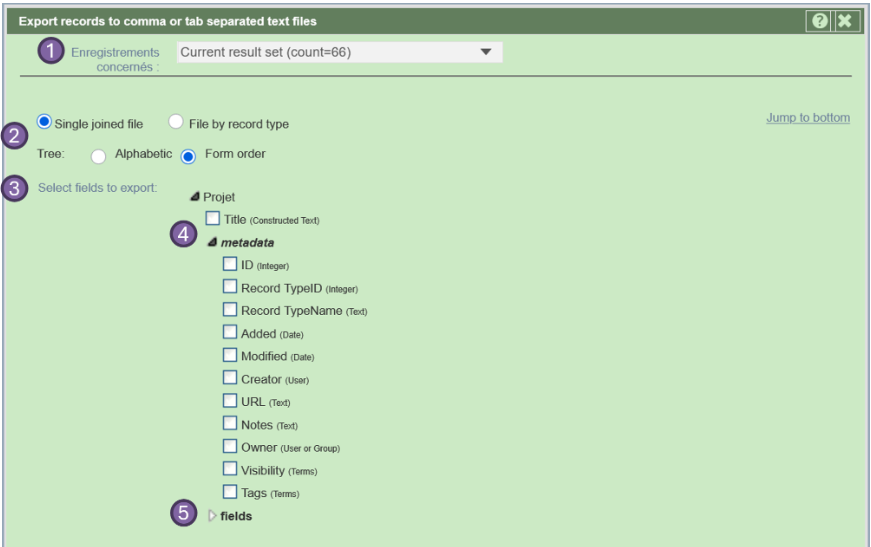
After the records selection, you choose one of the two available export settings ② :
- a single joined file
- a file by record type (if multiple types are selected).
You can choose to display the fields in either Form order (the default) or alphabetic order. Alphabetic order may make it easier to select fields in some circumstances.
The main step of the export setting is to select the fields you want to export ③ . They can be any type of field including the constructed title, record pointers and relationship markers.
You can export metadata about the records ④ as well as the data from the data fields ⑤ .
If you have a current resultset with more than one record type in it, you will only be able to choose the metadata and fields which are shared by all the record types in the resultset.
If the record type you are exporting contains record pointer or relationship marker fields, you can drill down into those record types and export fields from within those records. They can be included in the main file ("single joined file") or exported as separate files with linking IDs ("File by record type").
You should use "File by record type" where there are multiple values in record pointer fields, since the values in each related record will need to be kept separate. For simple cases without repeated value record pointers "single joined file" may be appropriate.
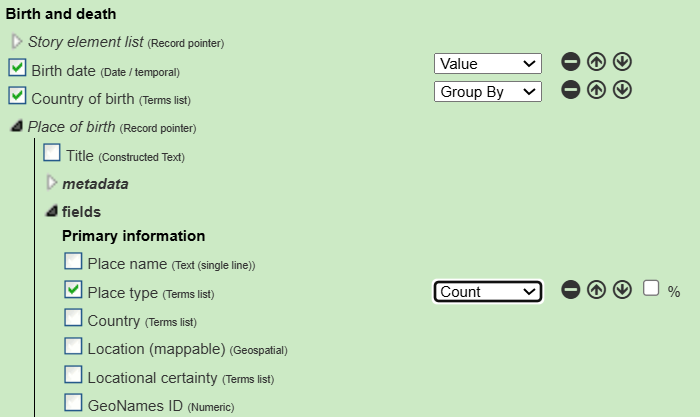
Note how you have some additional options appearing on the right against any selected fields.
For most purposes you will want to use Value, as the other options can be done more effectively in an external spreadsheet. However Group by will group records into a single record for each value encountered in the column, while Count will count the number of occurrences for the field in those groups. The results can be a little hard to interpret.
🛟 Tip:
The H-ID is ALWAYS included in the export because it uniquely identifies every record, so it is essential if you need to import/update data back into the database or to make links between records eg. record pointers
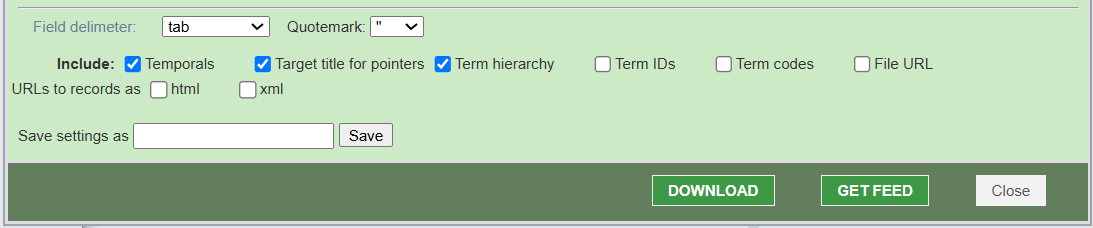
Finally, when ending the CSV export setting, you can change the field/column delimiter for the csv (for example: tab, semicolon, comma, etc.) and character used for quotemarking the textual content.
You can also save settings ⑦ by giving it a name in order to use it later.
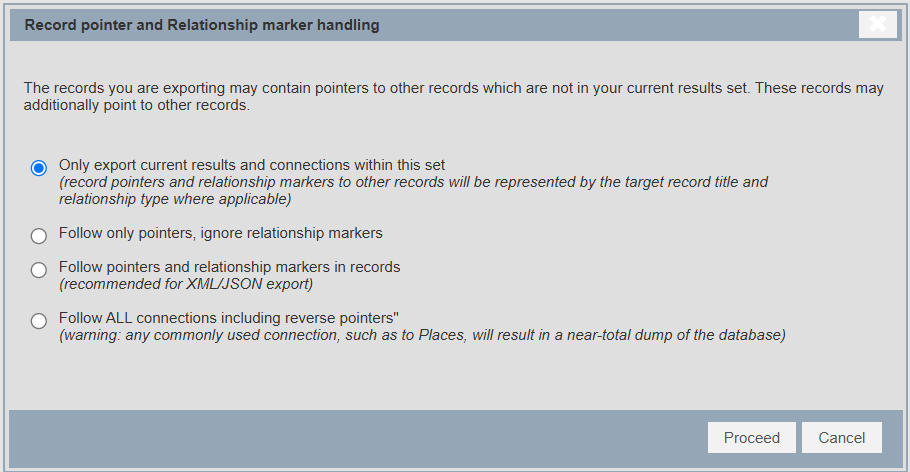
Handling of record pointers and relationships
For all other export types, it is possible to choose between:
- Export the records and their relationships (relationship of the type pointer or the relationships maker)
- Export only the pointer relationships
- Don’t follow the pointer relationships or the relationships makers
- Follow all relationships including inverse pointers (🚨warnings: it could export the entire database)
XML
“Extensible Markup Language (XML) is a markup language and file format for storing, transmitting, and reconstructing data. It defines a set of rules for encoding documents in a format that is both human-readable and machine-readable.” (source: Wikipedia)
Heurist defines an XML schema called Heurist Markup Language (HML). HML can be used both as an interpretable archivable format (it is included as the primary element of Publish > Safeguard file) and as a data source which can be transformed with XSLT transforms, Python, PHP, or many other languages to a required format.
Check the box "Include uploaded files and deliver as a single zip file for download" (see below) to include the images and other files which have been uploaded or attached to the selected records, and deliver the XML file and the images as a downoaded zip file. Note that this can become very large if you include a lot of records with images.
Check the box "Include human-readable names and local IDs for everything" if you plan to look at the XML file and interpret its structure (this will create a very large file duer to repetition). It is often better to export an explanation of the structure through Populate >Heurist XML/JSON - Download template.

JSON
“JSON (JavaScript Object Notation) is an open standard file format and data interchange format that uses human-readable text to store and transmit data objects consisting of name–value pairs and arrays (or other serializable values).” (source: Wikipedia)
The choices are similar to XML/HML, except that it cannot include the human readable forms. However, as with XML, you can download the information in the form of a JSon tempalte through Populate >Heurist XML/JSON - Download template.
RDF
“The Resource Description Framework (RDF) is a method to describe and exchange graph data.” (source: Wikipedia)
In this format, you can specify the serialisation you want: rdfxml, json, ntriples or turtle
As this function is still in development (July 2026) it requires a special password to access. Contact the Heurist development team for further information.
GeoJSON
“GeoJSON is an open standard format designed for representing simple geographical features, along with their non-spatial attributes. It is based on the JSON format.” (source: Wikipedia)
You can select the export detail between: No = no detail, Inline = Inline detail, and Full = maximum detail
KML
“Keyhole Markup Language (KML) is an XML notation for expressing geographic annotation and visualization within two-dimensional maps and three-dimensional Earth browsers. It is best known for its use in Google Maps but is widely importable into GIS and mapping packages” (source: Wikipedia)
There are no options for this export format, it is exported immediately as soon as you click on the button.
GEPHI
GEPHI export generates a GEFX file which can be loaded immediately into GEPHI. Note that this export function is also available directly within the network visualisation graph in the Network tab.

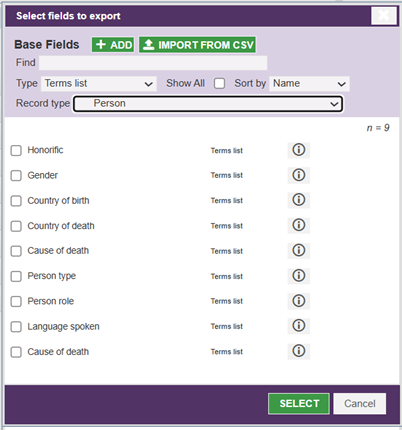
In addition to the normal node and edge fields, you can choose to add additional fields to the export ①.

This leads to the pop-up below. We recommend only selecting fields relevant to the record type being exported. You can also export with jsut the default fields ② which will be sufficient in most cases.
🛟 Tip:
It can be useful to check the box limiting the export to the first 1000 nodes in order to check that the export gives you what you want in GEPHI, befor exporting a very large dataset.
IIIF
“The International Image Interoperability Framework (IIIF, spoken as ‘triple-I-F’) defines several application programming interfaces that provide a standardised method of describing and delivering images over the web, as well as “presentation based metadata”[1] (that is, structural metadata) about structured sequences of images” . (source: Wikipedia). IIIF can also handle tiled image delivery andimage annotation.
Heursit acts as both a IIIF manifest delivery system and image server, and as an IIIF display and annotation client, notably through the use of Mirador Vsn 4 and Open Sea Dragon viewers, and the MAE annotation framework. Heurist can also read and atomise manifests containing annotations, and recompose manifests including those annotaitons and others created within Heurist.
IIIF is a rich and complex system. Heurist's IIIF implementation is discussed in detial in chapter 8e.
HuNI
“HuNI (pronounced “honey”) brings together information about the people, works, events, organisations and places that form Australia and Canada’s past and present.” (source: huni.net). It is an old infrastrucute project dating to the 2000s with limited functionality (essentially harvesting simple metadata from 40+ Australian sources, providing simple search, bookmarking as a 'collecction' and exporting a CSV file with title and URL of the bookmarked records. The HuNI export format has the particularity of exporting one XML file per record. It may be of some use if that fits with your needs.
HTML
This option exports HTML pages for public records (one file-per-record) using the Record view format.
📊 Export‑type quick‑reference table – Which format to choose?
Need | CSV | XML | RDF | JSON | GeoJSON | KML | Gephi | IIIF | HuNI |
|---|---|---|---|---|---|---|---|---|---|
Spreadsheet | ✅ | ✅ | |||||||
Markup (tagging) | ✅ | ✅ | ✅ | ✅ | ✅ | ✅ | ✅ | ||
Versatile (generic data) | ✅ | ✅ | ✅ | ✅ | ✅ | ✅ | ✅ | ✅ | |
Spatial (geographic) | ✅ | ✅ | |||||||
Networks | ✅ | ||||||||
High‑resolution images | ✅ |
No comments to display
No comments to display